

Documentation Monoceros 3
Monoceros 3 is a Discrete Assembly plug-in for Grasshopper / Rhino by Ján Pernecký. It fills a spatial Envelope with discrete Modules according to user-defined Rules using the Wave Function Collapse algorithm. New to Monoceros? See the Quick Start guide.
Workflows
Workflow strategies and step-by-step example workflows.
FAQ & tips
Frequently asked questions, tips & tricks for common workflows and troubleshooting.
Use your AI agent
Get instant help from ChatGPT, Claude, Gemini, or any AI assistant using the official Monoceros documentation.
Join a workshop
Hands-on workshops covering Monoceros fundamentals, module design, and advanced workflows.
Bare minimum ↓ GH

The simplest possible Monoceros setup - one module, one rule, one solver call. Grasshopper file for download.
Puzzle ↓ GH

Interlocking puzzle-piece modules that can only connect one way. Grasshopper file for download.
Table of contents
- 1. Introduction
- 2. How is Monoceros structured?
- 3. What data types does Monoceros use?
- 4. What Grasshopper components does Monoceros provide?
- Vocabulary
1. Introduction
1.1 What is Monoceros
Monoceros is a legendary animal living in the huge mountains in the interior of India. It has the body of a horse, the head of a stag, the feet of an elephant and the tail of a boar.
Monoceros is also a suite of tools for optimally occupying an Envelope with discrete Modules, where the spatial relationship between those Modules can be constrained by a set of user-defined Rules. By using the Wave Function Collapse algorithm, it provides an innovative and fast solution to the emerging architectural problem of discrete aggregation for purposes of design, architecture and urban planning. Monoceros is a plug-in for Rhino / Grasshopper originally created at studio Subdigital by Ján Tóth and Ján Pernecký in 2021; Monoceros 3 is developed and maintained by Ján Pernecký.
Monoceros 3 introduces a significant set of capabilities over the original release:
- Weighted Observation and weighted Entropy - per-Module probability control lets the user bias the Solver toward or away from specific Modules in each Slot.
- Heterogeneous Slot dimensions - cells of different X, Y, Z sizes can coexist in the same Envelope, enabling mixed-scale assemblies.
- Automatic Module Rotations - the Module Rotations component generates up to 24 orientations per Module, with voxel-based deduplication to remove geometrically identical results.
- Voxel engine for Connector and Rule suggestion - robust Face-matching even for complex or irregular geometry.
- Multi-solution output - multiple solve results from different Random Seeds can be collected in a single pass.
- Parallel solving - multiple Attempts run simultaneously on available CPU cores.
- Megamodule support - multi-cell Modules with auto-generated internal Rules, enabling larger design elements that span several Slots.
- Full Grasshopper integration - all Monoceros types cast to and from standard Grasshopper types, allowing direct connection to any GH component.
1.2 What is Wave Function Collapse
Wave Function Collapse (WFC) fills an entire spatial Envelope with Modules according to a set of adjacency Rules. The Envelope is divided into discrete, box-shaped Slots. Each Slot starts out with a list of all Modules that are allowed to occupy it. The algorithm progressively narrows those lists, Slot by Slot, until every Slot holds exactly one Module - and every pair of neighboring Modules is permitted by the Rules.
WFC is not a growth algorithm. It does not grow outward from a Seed or leave gaps behind. It always produces a result that fills the entire Envelope: either a complete, valid aggregate in which every Slot is occupied, or no solution at all. Because the algorithm operates simultaneously across the whole grid rather than expanding incrementally, the results are non-hierarchical - like a rhizome rather than a tree. There is no center, no branching structure, no preferred Direction of growth, no overlapping, and no untreated areas.
Monoceros is a loose implementation of the Wave Function Collapse algorithm originally developed for game design by Maxim Gumin and extended and promoted by Oskar Stålberg with his game Townscaper.
The algorithm
WFC proceeds in four phases:
- Canonicalization – Before the first Observation, the Solver runs an initial Propagation pass on the starting state. This removes any Module that is already impossible in a Slot given the initial allowed-Module lists and Rules, reducing every Slot to the tightest consistent set of possibilities. The result is the Canonical starting state. If any Slot reaches zero allowed Modules during Canonicalization, the setup is Contradictory and no solving is attempted.
- Observation – The Slot with the lowest Entropy - the fewest remaining allowed Modules, weighted by Module Weights - is selected and assigned a single Module chosen randomly according to those Weights, making it Deterministic. A Slot that has only one remaining allowed Module becomes Deterministic without randomness.
- Propagation – The newly fixed assignment is propagated outward through the grid. For each neighbor of the observed Slot, any Module that can no longer legally occupy that Slot - because the Rules no longer permit it next to the now-fixed neighbor - is removed from its allowed list. This removal can in turn force further removals in the neighbors’ neighbors, cascading recursively until the grid reaches a stable state with no further removals possible.
- Repeat – Steps 2 and 3 alternate until either all Slots are Deterministic (success) or a Slot reaches zero allowed Modules (a Contradictory state). On Contradiction the Solver retries with a different Random Seed, up to the configured Attempt limit.
1.3 What are the design principles of Monoceros 3?
Monoceros 3 is not a sequential update of Monoceros 1 but a redesigned tool built on three core principles:
- Less Monoceros, more Grasshopper - what can be done with vanilla Grasshopper should be. Monoceros data types connect directly to standard Grasshopper components and other plug-ins.
- The tool is not the workflow - no design strategy is enforced by the tool. Monoceros components combine freely with any Grasshopper workflow.
- Explicit by default - every decision is visible in the Grasshopper canvas.
These principles caused substantial changes from Monoceros 1. Monoceros 3 data types and components are not compatible with Monoceros 1.
1.4 How do I migrate from Monoceros 1?
Monoceros 3 is a substantial redesign, not a feature update. Data types and components are not compatible with Monoceros 1. The most impactful improvements for daily workflow are:
- Weighted Observation - each Module in each Slot can carry its own Weight. Higher Weight increases the probability of being chosen during Observation, enabling gradient effects, frequency control, and partial pre-determination - none of which were possible in Monoceros 1.
- Heterogeneous Slot dimensions - the Envelope can mix cells of different sizes in a single solve. Monoceros 1 required all cells to be identical. Mixed-scale assemblies are now straightforward.
- Module Rotations component - all distinct rotations of a Module are generated automatically with voxel-based deduplication. In Monoceros 1, every rotated variant had to be defined by hand - up to 24 separate Modules for a fully rotatable element.
- Multi-solution parallel solving - the Solver can run multiple Attempts simultaneously across all CPU cores and return a separate branch per solution. Exploring alternatives no longer requires re-running the definition manually.
- Voxel engine for Rule suggestion - Suggest Rules from Voxels matches Face layers by voxel pattern rather than raw geometry, making automatic Rule suggestion reliable even for complex or irregular Module Faces.
- Full Grasshopper type integration - all Monoceros types cast to and from standard Grasshopper geometry. A Slot casts to a Grid Box, Box, Brep, Point, or Plane. Monoceros components connect directly to standard GH tools without manual conversion steps.
- Indifference as an Assembly-level setting - the Indifference toggle on Construct Assembly replaces the Indifferent Rule from Monoceros 1. The effect is identical but the setup is cleaner and entirely explicit.
2. How is Monoceros structured?
2.1 What is the Monoceros workflow?
A typical Monoceros 3 workflow follows these steps:
- Define a Grid - Use the Homogeneous Grid or Heterogeneous Grid component to create Grid Boxes. A Grid Box carries only geometry - its size and position. A collection of Grid Boxes forms a grid. It is important to understand that Grid Boxes and Slots can be placed freely in world space; nothing enforces that they form a valid grid. Using the grid construction components guarantees a correct arrangement; any manually assembled or post-processed set of Grid Boxes must be carefully verified.
- Construct Modules - Define each Module with a name, a Grid Box (defining its cell size and pivot), and optional geometry. Generate rotation variants with the Module Rotations component if needed.
- Analyze Faces - Extract and inspect the six Faces of each Module. Use the Detect Rules From Geometry or Detect Rules From Voxels components to identify matching Face pairs.
- Define Rules - Create Rules specifying which Face pairs are allowed to touch. Each Rule connects a source Face to a target Face facing the opposite Direction.
- Construct Slots (Envelope) - Create Slots from Grid Boxes, optionally specifying which Modules are allowed in each Slot and their relative Weights. This step converts the Grid Boxes into an Envelope: Grid Boxes carry only geometry; Slots additionally carry the list of allowed Module candidates and per-Module Weights needed for solving. If the Allowed Module Names input is not connected, the Slot is created as allow-all and Construct Assembly will resolve it to the full final Module set - useful for the common case where every Slot accepts every Module.
- Add Boundary - Optionally add boundary Grid Boxes around the Envelope, convert them to boundary-specific Slots, and merge them with the interior Slots.
- Construct Assembly - Feed Modules, Slots, Rules, Connectors, and Connector Pairs into Construct Assembly. This expands rotation variants, generates Connector-based Rules, applies indifference, deduplicates, audits, and packages everything into a Discrete Assembly.
- Solve - Connect the Assembly to the WFC Solver. Assembly is the sole data input. The Solver returns an output Assembly with solved Slot states.
- Materialize - Connect the solved Assembly to the Materialize Assembly component to extract placed geometry.
2.2 Where are the Monoceros components in Grasshopper?
All Monoceros 3 components live in the Monoceros 3 tab in the Grasshopper ribbon. They are organized into seven subcategories:
- Main - Construct Assembly, Deconstruct Assembly, WFC Solver, Materialize Assembly, Audit Assembly
- Connector - Connector construction, identification, pairing, suggestion, preview
- Grid - Grid creation, boundary, topology, geometry slicing
- Module - Module construction, deconstruction, rotations, deduplication, Megamodules
- Face - Face extraction, analysis, comparison, suggestion, preview
- Rule - Rule construction, deconstruction, filtering, suggestion, preview
- Slot - Slot construction, deconstruction, pattern finding
3. What data types does Monoceros use?
Monoceros 3 defines custom Grasshopper data types for all elements used in a WFC workflow. All Monoceros types can be passed through standard Grasshopper wires. Several support viewport preview and baking.
3.1 Grid
 3.1.1 Grid Box
A Grid Box is the basic spatial cell unit of a Monoceros grid - a box-shaped region that defines the size and position of one cell. Multiple Grid Boxes form a grid; when converted to Slots via the Construct Slot component, they form an Envelope.
Grid Boxes are created by the Homogeneous Grid or Heterogeneous Grid components and can also be cast from standard Rhino Boxes, Rectangles, or Breps. A Grid Box exposes its Box geometry, from which center, dimensions, and Orientation can be derived.
Validity
A Grid Box is valid when its Box geometry is non-degenerate - all three dimensions greater than zero. Invalid Grid Boxes are rejected by all Monoceros components with a warning.
Viewport preview
Draws a wireframe representation of the Grid Box with short colored lines indicating the +X, +Y, and +Z Directions at the center.
Casting
| From / To | Type | Notes |
|---|---|---|
| Cast from | Box |
A Rhino Box is wrapped directly into a Grid Box. |
| Cast from | BoundingBox |
A BoundingBox is wrapped directly into a Grid Box. |
| Cast from | Rectangle |
A Rectangle is extruded by one unit in Z to form a Grid Box. |
| Cast from | Brep |
The bounding box of the Brep is used as the Grid Box. |
| Cast to | Box |
Returns the Grid Box as Rhino Box geometry. |
| Cast to | Brep |
Returns the Grid Box as a closed Brep surface. |
| Cast to | Point |
Returns the center point of the Grid Box. |
| Cast to | Plane |
Returns the center plane of the Grid Box with its Orientation. |
| Cast to | Vector |
Returns the diagonal vector (X, Y, Z dimensions) of the Grid Box. |
String representation
Displays as a formatted string showing the box origin and dimensions, for example: Grid Box at (0,0,0) 1×1×1.
Baking
Grid Boxes bake as Rhino Box geometry.
3.2 Module
 3.2.1 Module
A Module is the fundamental design element in Monoceros 3. It carries a name, the geometry of a discrete building element, and a Grid Box that defines its cell size and pivot. Each Module has exactly six Faces - one per Face, identified by Axis and Orientation: +X, -X, +Y, -Y, +Z, -Z. These Faces determine which neighboring Modules may legally be placed adjacent to it.
During WFC solving, each Slot starts with the full list of allowed Modules as candidates. The Solver progressively eliminates candidates - removing any Module from a Slot when its presence would violate a Rule with a neighboring Slot - until each Slot holds exactly one Module (Deterministic) or none (Contradictory). Selection is probabilistic and guided by the per-Module Weights stored in each Slot.
The Module’s geometry does not need to fit exactly inside the Grid Box - it can extend beyond or remain smaller. When geometry fits tightly and aligns with the Faces, Faces can be suggested automatically using the Detect Rules From Geometry or Detect Rules From Voxels components.
Key properties
- Module Name - A unique, lowercase string. Names are lowercased automatically on input. Multiple Modules sharing the same name are treated as variants (invariants) of the same Module type - useful in Heterogeneous Grids where the same Module Name must cover Slots of different sizes.
- Grid Box - The bounding box defining the Module’s cell size and pivot.
- Geometry - Optional Rhino geometry (curves, surfaces, Breps, meshes). Can exceed the bounding box.
- Faces - Six Faces, one per Face. Each is identified by its Direction (
+X…-Z), which encodes the Face’s Axis (X, Y, or Z) and Orientation (positive or negative). Any Face that should participate in adjacency decisions must appear in at least one Rule. Faces without a Rule are treated as Indifferent when indifference is enabled on Construct Assembly. - Rotation flags - Record whether the Module was transformed. Construct Assembly expands flagged Modules into all implied rotational variants, remapping Face Directions accordingly. The expanded variants are available via Deconstruct Assembly.
Viewport preview
The Module preview draws:
- The Module geometry (wireframe for curves; shaded for Breps and Meshes), mirroring Rhino’s own display logic: shaded-style display modes show the source objects’ original display colors, and rendered-style modes show their assigned render materials including bitmap and transparency textures. Wireframe-style display modes draw only the edges, never shaded geometry. Selection highlighting (green for selected, red for invalid) is drawn on the wireframe edges only, so the realistic surface colors stay visible while selecting.
- A semi-transparent wireframe outline of the bounding Grid Box (white if valid, red if invalid).
- Face dots at each Face center, colored by Axis: X = red, Y = green, Z = blue. Dot text is white for positive Directions (
+X,+Y,+Z) and black for negative (-X,-Y,-Z). - The Module name as a text label (with rotation suffixes when applicable). Like all Monoceros viewport text, the label only draws once the Module cage spans at least 450 pixels on screen; each label is gated individually, so text on far-away Modules switches off regardless of what else is near the camera.
Validity
A Module is valid when its name is non-empty and its Grid Box is valid. Modules with no geometry are allowed - they produce no output during materialization but participate fully in solving.
Casting
| From / To | Type | Notes |
|---|---|---|
| Cast from | (none) | Use the Construct Module component. |
| Cast to | Module Name |
Extracts the Module's name as a Module Name value. |
| Cast to | Grid Box |
Extracts the bounding Grid Box of the Module. |
| Cast to | Point |
Returns the center point of the Module's Grid Box. |
| Cast to | Plane |
Returns the center plane of the Module's Grid Box with its Orientation. |
| Cast to | Vector |
Returns the diagonal vector (X, Y, Z) of the Module's Grid Box. |
Baking
Modules bake as a group containing the geometry, Face rectangles, and Face text dots.
 3.2.2 Module Name
A Module Name is a lowercase string identifier passed to the WFC Solver to represent a Module type. Input strings are converted to lowercase automatically.
Module Names are the unit of identity for the Solver. Two Modules with the same name are treated as variants (called invariants) of the same Module type. The Solver decides which Module “wins” a Slot by name; Materialize then picks the invariant whose dimensions match the Slot’s Grid Box. This is the mechanism used in Heterogeneous Grid setups: define several Modules sharing the same name but with different bounding-box sizes, and the Solver treats them as interchangeable - Materialize picks the one that physically fits.
Rules apply to all invariants simultaneously. A Rule defined for a name covers every size variant of that name. You write the Rule once; all invariants obey it.
Variant design contract. Sharing a name is a commitment that all size variants are functionally equivalent from the Solver’s point of view. If two size variants would need different connection Rules - for example, a long variant connects to a long neighbour but a short variant does not connect to a short neighbour - they must not share a name. Give them independent names and define separate Rules. See example 1.8 - The invariant design contract for a detailed worked example.
Validity
A Module Name is valid when it is non-empty and free of the reserved characters : (colon), -> (arrow), @, #, and newlines. Spaces are allowed.
Casting
| From / To | Type | Notes |
|---|---|---|
| Cast from | String |
The string is lowercased and used as the Module Name. |
| Cast from | Module |
Extracts the Module's name. |
| Cast from | Integer |
The integer is converted to a string and used as the Module Name. |
| Cast from | Number |
The number is converted to a string and used as the Module Name. |
| Cast from | Data Path |
The Data Path is converted to a string and used as the Module Name. |
| Cast to | String |
Returns the name string. |
String representation
Returns the name string, for example: wall or corner-piece.
Baking
Module Names are string values and do not bake directly.
3.3 Face
 3.3.1 Face Index
A Face Index is an integer 0–5 that identifies one of the six Face Directions of a Module or Grid Box. Each index maps to a named Direction combining an Axis (X, Y, or Z) and an Orientation (positive or negative). Opposite Faces always have indices that sum to 5 (+X 0 ↔ -X 3, etc.), which is how the Solver checks that neighboring Faces Face each other correctly.
Face Indices appear as input to Rule-construction components such as Get Module Faces and Construct Rules From Faces, and as part of FaceId strings. When building Rules manually, the named form (+X, -Y, etc.) is preferred over the numeric form for readability.
| Index | Name | From / To | Opposite |
|---|---|---|---|
0 |
+X |
X Positive | -X (3) |
1 |
+Y |
Y Positive | -Y (4) |
2 |
+Z |
Z Positive | -Z (5) |
3 |
-X |
X Negative | +X (0) |
4 |
-Y |
Y Negative | +Y (1) |
5 |
-Z |
Z Negative | +Z (2) |
Casting
| From / To | Type | Notes |
|---|---|---|
| Cast from | Integer |
Integers 0–5 map directly to Faces. |
| Cast from | Number |
Numbers are truncated to integers 0–5. |
| Cast from | String |
Accepts numeric ("0") and named ("+X", "-Y") formats. |
| Cast to | Integer |
Returns the numeric index (0–5). |
Validity
Valid indices are integers 0 through 5. Strings in named form (+X, -Y, etc.) are also accepted as input.
Baking
Face Indices do not bake directly.
 3.3.2 Face (UID)
A Face uniquely identifies a specific Face on a specific Module. It combines a Module Name and a Face Index.
Properties
- Module Name - The name of the Module this Face belongs to.
- Face Index - The Face Direction as an integer (0-5) or named form (
+X…-Z).
String representation
Format: modulename:+X. Both numeric and named indices are accepted. Examples:
wall:+X
corner:3
In Rules the format is:
wall:+X -> corner:-XValidity
A FaceId is valid when its Module Name is non-empty and its Face Index is in the range 0–5.
Casting
| From / To | Type | Notes |
|---|---|---|
| Cast from | String |
Parses the "modulename:faceindex" format. |
| Cast to | String |
Returns the FaceId string, e.g. wall:+X. |
Baking
Face UIDs do not bake directly. Use the Preview Faces component to visualize them in the viewport.
3.4 Slot
 3.4.1 Slot
A Slot represents one cell in the Envelope. It holds the list of Module Names currently allowed to occupy it, along with a per-Module Weight for each candidate. The WFC Solver progressively reduces this list until each Slot holds exactly one Module (Deterministic) or none (Contradictory). Before solving, most Slots allow multiple Modules and are therefore Non-deterministic.
Key properties
- Box - The cell bounding box (same geometry as the Grid Box it was created from).
- Allowed Module Names - The list of Module Names still allowed in this Slot.
- Module Weights - One Number per allowed Module. Higher Weight increases the probability of that Module being chosen during Observation. Default Weight is
1.0. A Weight covers the Module as a whole, including all of its rotated variants, so authored ratios (e.g. 4:1) hold regardless of how many rotation variants each Module has. Per-Slot Weights override per-Module Weights where both are set. - Total Modules Count - Optional. The total number of distinct Module types in the system, used to compute the Entropy color gradient. When omitted (or zero), the gradient and Entropy label are not shown, but the Slot is fully valid for solving.
- Allows All - True when the Slot was constructed without explicit Module Names (empty allowed list and zero Total Modules Count). An allow-all Slot is neither Deterministic nor Contradictory; it is unresolved and will be filled with the full final Module set by Construct Assembly.
States
The Solver aims to make every Slot Deterministic. Slots can also become Deterministic before solving when their allowed list is restricted manually - for example by constructing a Slot with only one allowed Module Name.
| State | Allowed count | Preview color | Meaning |
|---|---|---|---|
| Contradictory | 0 | Red | No Module fits - this solve Attempt failed. The Solver will retry with a different Seed. |
| Deterministic | 1 | Green | Exactly one Module is assigned. The Slot is solved and can be materialized. |
| Non-deterministic | 2+ | Gradient from black (2 allowed) to white (all allowed) | Multiple Modules are still possible - not yet solved. |
| Allow-all | 0 (empty list, zero Total) | White | Unresolved: created without explicit Module Names. Construct Assembly resolves it to the full final Module set. Previews with the label All. |
Viewport preview
Draws a colored wireframe box. The wireframe is intentionally drawn slightly smaller than the actual cell box. Adjacent Slots share Faces, so if the boxes were drawn full-size their edges would coincide and overlap, making individual cells impossible to distinguish in the viewport. Shrinking each box inward by a small factor ensures there is always a visual gap between neighbors, even at zero distance. The actual solving geometry uses the full box.
The occupancy label (allowed count, Entropy percentage) is drawn on three Faces (XY, XZ, YZ) once the Slot spans at least 450 pixels on screen, and switches off below that. Each label is gated individually, so labels on far-away Slots turn off regardless of what else is near the camera.
Weight bar chart. When a Slot carries non-uniform Module Weights and is zoomed in close enough to span 750 pixels on screen (a single Slot dominating the view), a bar chart is drawn above the occupancy label on the top (XY) Face: one narrow wireframe rectangle per allowed Module, in allowed-Modules order, captioned with the Weight (two decimals) and the Module Name written vertically beside the bar. Bar heights are normalized so the largest Weight spans half the Face; a dotted ceiling line marks the normalization maximum. Captions shrink with the Module count and are skipped when unreadable, so very high Module counts drop captions automatically. Slots with uniform (default) Weights draw no chart.
String representation
Displays state and position, for example: Slot [3 allowed] at (1,0,0), Slot [deterministic: wall] at (2,1,0), or Slot [All allowed] at (1,0,0) for allow-all Slots.
Casting
Slots automatically cast to Grid Box when passed to components that accept Grid Boxes (such as Add Boundary Layer). This means solved Slots can be used directly wherever Grid Boxes are expected.
| From / To | Type | Notes |
|---|---|---|
| Cast from | (none) | Use the Construct Slot component. |
| Cast to | Grid Box |
Returns the cell's Grid Box, enabling use wherever Grid Boxes are expected. |
| Cast to | Box |
Returns the Slot's cell as Rhino Box geometry. |
| Cast to | Brep |
Returns the Slot's cell as a closed Brep surface. |
| Cast to | Point |
Returns the center point of the Slot's cell. |
| Cast to | Plane |
Returns the center plane of the Slot's cell. |
| Cast to | Vector |
Returns the diagonal vector (X, Y, Z) of the Slot's cell. |
Baking
Slots bake as colored boxes reflecting their state.
3.5 Rule
 3.5.1 Rule
A Rule defines an allowed adjacency between two Module Faces. It holds two FaceIds - a source Face and a target Face - which typically Face opposite Directions (e.g. source Faces +X, target Faces -X). A non-opposing Rule (e.g. a:+X → b:+Y) is also accepted: it is a Connector-symmetry hint that Construct Assembly expands into opposing-Face Rules referencing rotation variants of the target Module (the Solver itself only ever consumes opposing-Face Rules). Rules are bidirectional for equality: wall:+X → corner:-X is equivalent to corner:-X → wall:+X, so each adjacency only needs to be defined once.
Validity
Both FaceIds must be individually valid. The source and target Directions do not have to be opposite - a non-opposing pair is a valid Connector-symmetry hint (see above). For full validation, the referenced Module Names must exist in the provided Module list.
String representation
Format: modulea:+X -> moduleb:-X
Casting
| From / To | Type | Notes |
|---|---|---|
| Cast from | String |
Parses the "module:index -> module:index" format. |
| Cast to | (none) |
Baking
Rules do not bake directly. Use the Preview Rule component to visualize them in the viewport.
3.6 Connector
 3.6.1 Connector
A Connector is a named, rotation-aware interface that binds a type identity to a specific Module Face. Connectors emulate physical Connectors (USB-A, USB-C, 3.5 mm jack): two Faces can connect only when they carry compatible Connectors. Each Connector combines a name, four symmetry flags, a Module Name, a Face Direction, and an in-plane rotation into a single object. There is no separate type-definition step - all Connectors sharing the same name are implicitly the same type. The name carries the type identity.
The four symmetry flags define which of the four in-plane rotations (0°, 90°, 180°, 270°) are self-identical. When all four flags are true, the Connector is rotationally invariant (like a round jack). When only some flags are true, the Connector distinguishes certain rotations from each other, which affects how Rules are generated for rotated Module variants.
Key properties
- Name - A lowercase string identifying the Connector type. All Connectors with the same name are the same type. Must not contain
:,->, or@. Spaces are allowed. - Symmetry 0° - Self-identical at 0° rotation. Default:
true. - Symmetry 90° - Self-identical at 90° rotation. Default:
true. - Symmetry 180° - Self-identical at 180° rotation. Default:
true. - Symmetry 270° - Self-identical at 270° rotation. Default:
true. - Module Name - The name of the Module this Connector is placed on.
- Face Direction - The Face Direction as a Face Index (
+X…-Z). - Rotation - In-plane rotation on the Face: 0, 90, 180, or 270 degrees.
String representation
Format: connectorName#rot-A@moduleName:faceIndex. Deconstructs into Connector name, rotation, Module Name, and Face id. Example: usba#rot-0@wall:+X.
Validity
A Connector is valid when its name is non-empty, contains no reserved characters (:, ->, @, #), at least one symmetry flag is true, the Module Name is valid, the Face Direction is valid, and the rotation is one of 0, 90, 180, or 270.
Casting
| From / To | Type | Notes |
|---|---|---|
| Cast from | String |
Parses the "connectorName#rot-A@moduleName:faceIndex" format. |
| Cast to | (none) |
Preview & Baking
The Connector data type does not support viewport preview or baking on its own. The preview is provided by the producing component - Construct Connector, Match Connectors By Geometry, and Match Connectors By Voxels each draw Connector labels as stickers on Module Faces when Modules are connected to their inputs.
 3.6.2 Connector Pair
A Connector Pair declares that two Connector types can connect across opposing Faces. A Connector Pair stores two name strings (not references to Connector objects). Compatibility is bidirectional: declaring A → B also allows B → A.
String representation
Format: sourcename -> targetname. Example: usba -> usba.
Validity
A Connector Pair is valid when both its source name and target name are non-empty and contain no reserved characters.
Casting
| From / To | Type | Notes |
|---|---|---|
| Cast from | String |
Parses the "source -> target" format. |
| Cast to | (none) |
Baking
Connector Pairs do not bake directly.
 3.6.3 Connector Name
A Connector Name is a lowercase string that identifies a Connector type. All Connectors sharing the same name are the same type. Input strings are converted to lowercase and trimmed automatically.
Validity
A Connector Name is valid when it is non-empty and free of the reserved characters :, ->, @, #, and newlines. Spaces are allowed.
Casting
| From / To | Type | Notes |
|---|---|---|
| Cast from | String |
The string is lowercased and trimmed. Fails if the result contains reserved characters. |
| Cast from | Connector |
Extracts the Connector's name. |
| Cast to | String |
Returns the name string. |
String representation
Returns the name string, for example: usba or rj45.
Baking
Connector Names are string values and do not bake directly.
3.7 Assembly
 3.7.1 Assembly
A Discrete Assembly (or simply Assembly) is an opaque bundle that packages Modules, Slots, Rules, and an Audit report into a single container ready for the Solver. The Construct Assembly component creates an Assembly by expanding rotation variants, transforming Connectors, generating Rules from Connectors and Connector Pairs, applying indifference, merging and deduplicating all Rule sources, and running a full Audit. The result replaces the manual Module Rotations → Rule merging → Audit wiring pattern with a single component.
The Solver accepts an Assembly as an optional input. When connected, the Solver uses the Assembly's Modules, Slots, and Rules directly, skipping its own rotation expansion and indifference steps (which are assumed already applied). The Solver also produces an output Assembly containing the solved Slot states.
Key properties
- Modules - Expanded, deduplicated list of all Modules including rotation variants.
- Slots - Current Slot states (pre-solve or post-solve).
- Rules - Complete merged Rule set (explicit, Connector-generated, rotation-expanded, and optionally Indifferent).
- Audit Result - Comprehensive validation report including grid validity, uncovered Faces, unknown Modules, over-constraint detection, and more.
String representation
Format: Assembly (N modules, M slots, K rules).
Validity
An Assembly is valid when its Modules, Slots, Rules, and Audit Result are all non-null.
Casting
| From / To | Type | Notes |
|---|---|---|
| Cast from | (none) | Use the Construct Assembly component or the Solver's Assembly output. |
| Cast to | (none) |
Baking
Assemblies do not bake directly. Use the Deconstruct Assembly component to extract Modules, Slots, and Rules, or connect the Assembly to the Materialize Assembly component to produce geometry.
4. What Grasshopper components does Monoceros provide?
4.1 Connector
 4.1.1 Connector from Point
Create Connectors by pointing at a Module Face in the viewport. Combines Face-from-Point lookup with Connector construction: looks up every Module Face whose geometry contains the provided point and produces one Connector per match. Useful when authoring Connectors by clicking on Module Faces directly in the Rhino viewport. 8 inputs total.
Behavior
Resolves the Point Tag into one or more Module Faces using the same point-in-Face matching logic as Faces from Point, then constructs a Connector for each matching Face using the same name, rotation and symmetry inputs as Connector from Face. Zero matches raise a Warning (“Point does not match any Module Face.”); multiple matches emit an informational Remark listing how many Connectors were created. An unmatched Point Tag is also marked directly in the viewport with a red circle-and-cross badge laid flat in the world XY plane at the point, sized from the average provided Module size, so the offending point is obvious at a glance instead of only named in a warning bubble. Viewport preview draws the Connector sticker on every matched Face, identically to Connector From Face.
Inputs
| Name | Nickname | Type | Access | Description |
|---|---|---|---|---|
| Connector Name | CN | Connector Name | Item | Connector type name. Cast from string. If not provided, a Deterministic name is auto-generated from the component instance. (Optional) |
| Modules | M | Module | List | All available Modules to search for a Face hit. Provide a flattened list. |
| Point Tag | Pt | Point | Item | Point marking a location on a Module Face. The component returns one Connector per Module Face whose geometry contains the point. |
| Face Rotation | R | Integer | Item | In-plane rotation of the Connector. 0 = 0°, 1 = 90°, 2 = 180°, 3 = 270°. Default: 0. |
| Symmetry 0° | S0 | Boolean | Item | Self-identical at 0° rotation. Default: true. |
| Symmetry 90° | S90 | Boolean | Item | Self-identical at 90° rotation. Default: true. |
| Symmetry 180° | S180 | Boolean | Item | Self-identical at 180° rotation. Default: true. |
| Symmetry 270° | S270 | Boolean | Item | Self-identical at 270° rotation. Default: true. |
Outputs
| Name | Nickname | Type | Access | Description |
|---|---|---|---|---|
| Connectors | C | Connector | List | One Connector per matched Face. If the Point marks multiple Faces (e.g. overlapping Modules), each match produces its own Connector. |
 4.1.2 Construct Connector
Create Monoceros 3 Connectors from Faces - named, rotation-aware interfaces placed on specific Module Faces. Combines type identity (name + symmetry) and placement (FaceId + rotation) in a single object. All Connectors sharing the same name are implicitly the same type. A Module wired directly into the Face input is cast to a short-lived wildcard FaceId that the component expands into the Module's six explicit Faces, producing one Connector per Face. Output is flattened. 8 inputs total. For point-based placement, use Connector from Point.
Behavior
Validates the Connector name (must be non-empty, no reserved characters), the symmetry flags (at least one must be true), the Module Name, Face Direction, and Rotation. The name is lowercased automatically. A Connector with all four symmetry flags set to true behaves identically at every rotation - Rules generated for it do not distinguish Orientation. A Connector with selective flags (e.g. only 0° and 180°) produces different Rules for different in-plane orientations, enabling Direction-sensitive connections. When the optional Modules input is connected, the component draws a viewport preview showing the Connector as a label sticker on the target Face - displaying the Connector name and symmetry arrows in the Connector’s type color, with degree labels (0°, 90°, 180°, 270°) indicating the in-plane rotation.
Inputs
| Name | Nickname | Type | Access | Description |
|---|---|---|---|---|
| Connector Name | CN | Connector Name | Item | Connector type name. Cast from string. If not provided, a Deterministic name is auto-generated from the component instance. (Optional) |
| Face or Module | F | Face ID | List | Face where the Connector is placed, obtained from the Module Faces component. A Module may be wired here instead, in which case it is expanded into all six of its Faces and one Connector is produced per Face. |
| Face Rotation | R | Integer | Item | In-plane current rotation of the Connector. 0 = 0°, 1 = 90°, 2 = 180°, 3 = 270°. Default: 0. |
| Symmetry 0° | S0 | Boolean | Item | Self-identical at 0° rotation. Default: true. |
| Symmetry 90° | S90 | Boolean | Item | Self-identical at 90° rotation. Default: true. |
| Symmetry 180° | S180 | Boolean | Item | Self-identical at 180° rotation. Default: true. |
| Symmetry 270° | S270 | Boolean | Item | Self-identical at 270° rotation. Default: true. |
| All Modules | M | Module | List | All Modules (optional). Modules for viewport preview. When connected, the Connector is displayed on the target Face. |
Outputs
| Name | Nickname | Type | Access | Description |
|---|---|---|---|---|
| Connector | C | Connector | List | The constructed Connectors. |
 4.1.3 Construct Connector Pair
Declare which Connector types can connect across opposing Faces. Takes single items: Source Connector (item) + Target Connector (item) produces one Connector Pair (item). Compatibility is bidirectional - declaring A → B also allows B → A. Use Grasshopper’s cross-reference component to make multiple pairs from lists.
Behavior
Takes one Source Connector and one Target Connector, extracts their names, and produces a single Connector Pair object. To generate multiple pairs, use Grasshopper’s Cross Reference component on the inputs.
Inputs
| Name | Nickname | Type | Access | Description |
|---|---|---|---|---|
| Source Connector Names | SCN | Connector Name | List | Connector names defining the source side of each pair. |
| Target Connector Names | TCN | Connector Name | List | Connector names defining the target side of each pair. |
Outputs
| Name | Nickname | Type | Access | Description |
|---|---|---|---|---|
| Connector Pairs | CP | Connector Pair | List | All cross-matched Connector Pairs, deduplicated. |
 4.1.4 Deconstruct Connector
Deconstruct a Connector into its constituent parts: Connector name, rotation, Module Name, and Face id. The inverse of Connector from Face.
Inputs
| Name | Nickname | Type | Access | Description |
|---|---|---|---|---|
| Connector | C | Connector | Item | The Connector to deconstruct. |
Outputs
| Name | Nickname | Type | Access | Description |
|---|---|---|---|---|
| Connector Name | CN | Connector Name | Item | The Connector type name. |
| Rotation | R | Integer | Item | The in-plane rotation in degrees (0, 90, 180, or 270). |
| Module Name | MN | Module Name | Item | The name of the Module this Connector is placed on. |
| Face | F | Face ID | Item | The Face identifier (Module Name and Face Index). |
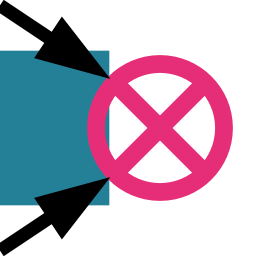 4.1.5 Construct Terminator
Create Terminators — boundary-facing markers placed on Module Faces. A Terminator declares that a specific Module Face is allowed to sit against the Envelope boundary when Require Terminators is enabled on Construct Assembly. For point-based placement, use Terminator from Point.
Behavior
The Face or Module input accepts either a Face (from the Get Module Faces component) or a whole Module. When a Module is wired, the component expands it into all six of its Faces and produces one Terminator per Face; a Remark reports how many were produced. This is the fastest way to mark an entire Module as fully boundary-compatible.
Terminators do nothing unless Require Terminators is enabled on Construct Assembly. When it is, Construct Assembly caps the occupied Envelope frontier directly: every exposed Slot Face must be filled by a Module that carries a Terminator on the matching Face. Module Faces without a Terminator cannot sit at the outer edge of the Envelope; if no allowed Module can cap an exposed Face, the Assembly will contradict. No extra boundary cells are added — the grid stays exactly the cells you authored.
The optional All Modules input provides Modules for viewport preview. When connected, a terminator badge — a smooth circle with an inner × — is drawn on each target Face in the viewport.
String representation
Format: Terminator@moduleName:faceIndex. Example: Terminator@pipe:+X.
Inputs
| Name | Nickname | Type | Access | Description |
|---|---|---|---|---|
| Face or Module | F | Face ID | List | Face where the Terminator is placed, obtained from the Module Faces component. A Module may be wired here instead, in which case it is expanded into all six of its Faces and one Terminator is produced per Face. |
| All Modules | M | Module | List | All Modules (optional). Modules for viewport preview. When connected, the terminator badge is displayed on the target Face. |
Outputs
| Name | Nickname | Type | Access | Description |
|---|---|---|---|---|
| Terminator | T | Terminator | List | The constructed Terminators. |
 4.1.6 Detect Connectors from Voxels
Voxelize all Module Faces using Face-local ray scanning, group same-Direction Faces by matching voxel fingerprint (testing 4 rotations), assign a named Connector to each group with detected rotation offsets, and output Connector Pairs for groups whose fingerprints match across opposite-Direction Faces.
Behavior
Shoots rays from each Face plane in both Directions (inward and outward) on a uniform grid. The resulting 3D boolean fingerprint is compared across same-Direction Faces at four 90-degree rotations. Faces whose fingerprints match at any rotation form a Connector group and receive the same Connector name (e.g. vox_0, vox_1, etc.) with the detected rotation offset. Symmetry flags are determined per group by testing the prototype fingerprint against itself at each rotation. Groups on opposite Directions are tested with a UV-mirrored comparison to account for the different coordinate frames of opposing Faces; each match produces a Connector Pair. The viewport shows Connector sticker previews (arrows and name labels) alongside voxel wireframes with a random colour per Connector group. Bezier curves connecting compatible Module Faces are drawn for each detected Connector Pair, using the same visual language as Preview Rule.
Recompute limit. When the number of detected Connector groups changes between consecutive recomputes, the component schedules one additional solution pass to stabilize. This reschedule is capped at five consecutive Attempts; if the count keeps changing after five passes a Warning is shown and the current result is returned as-is.
Inputs
| Name | Nickname | Type | Access | Description |
|---|---|---|---|---|
| Modules | M | Module | List | All Module objects to voxelize and analyse. Provide a flattened list. |
| Voxel Dimension | VD | Vector | Item | Number of voxels per Module Axis (X, Y, Z). Each component specifies how many voxels fit into the Module in the respective Direction. The Face grid resolution is derived from the two components that span the Face. |
| Precision | P | Integer | Item | Number of rays cast per cell. Higher values detect smaller features with higher accuracy but reduce speed. |
| Inner Depth | ID | Number | Item | Scan depth inside the cage as a fraction of the Module depth along the Face normal. 0.5 = half the Module depth, 1.0 = full depth. |
| Outer Depth | OD | Number | Item | Scan depth outside the cage as a fraction of the Module depth along the Face normal. 0.0 = flush with the Face. |
Outputs
| Name | Nickname | Type | Access | Description |
|---|---|---|---|---|
| Connectors | C | Connector | List | One Connector per Module Face that has occupied voxels. Faces with matching geometry share the same Connector name with detected rotation offsets. |
| Connector Pairs | CP | Connector Pair | List | Pairs of Connector names whose voxel fingerprints match across opposite-Direction Faces. Feed into Construct Assembly. |
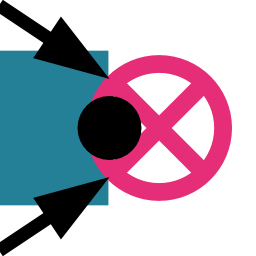 4.1.7 Terminator from Point
Create Terminators from a point tag. Looks up every Module Face whose geometry contains the provided point and creates a Terminator for each matching Face in one step. Useful for authoring Terminators by clicking on Module Faces in the Rhino viewport. For Face-based placement, use Construct Terminator.
Behavior
Uses the same point-in-Face matching as Faces from Point: the component tests every Face in every Module, checking whether the tagged point falls within the Face’s geometry. A Face matches if the point is within its boundary.
Zero matches raise a Warning and produce no Terminators. Multiple matches (e.g. two Modules whose geometries overlap at the point location) emit an informational Remark and produce one Terminator per match. Output is flattened.
Inputs
| Name | Nickname | Type | Access | Description |
|---|---|---|---|---|
| Modules | M | Module | List | All available Modules to search for a Face hit. Provide a flattened list. |
| Point Tag | Pt | Point | Item | Point marking a location on a Module Face. The component returns one Terminator per Module Face whose geometry contains the point. |
Outputs
| Name | Nickname | Type | Access | Description |
|---|---|---|---|---|
| Terminators | T | Terminator | List | One Terminator per matched Face. If the Point marks multiple Faces (e.g. overlapping Modules), each match produces its own Terminator. |
 4.1.8 Match Connectors by Geometry
Given an exemplar Connector, find all geometrically matching Faces across all Modules and output Connectors with detected rotation offsets. Uses the same naked-edge / curve-endpoint / point extraction as Detect Rules From Geometry but additionally detects the in-plane rotation offset between each match and the exemplar.
Behavior
Extracts Face geometry for every Module Face, transforms to a normalized base plane, and compares against the exemplar Connector's Face. For each match, the component tests all four 90° rotations of the geometry pattern to detect the rotation offset. The output is a list of Connectors covering all matching Faces (including the exemplar itself), each with the correct rotation. The exemplar Connector's name and symmetry flags are inherited by all output Connectors. The component draws a viewport preview showing all detected Connectors as stickers on Module Faces (name label and symmetry arrows in the Connector’s type color, with degree labels).
Inputs
| Name | Nickname | Type | Access | Description |
|---|---|---|---|---|
| Exemplar | E | Connector | Item | The reference Connector whose Face geometry defines what to match. |
| Modules | M | Module | List | All Modules to search. |
Outputs
| Name | Nickname | Type | Access | Description |
|---|---|---|---|---|
| Connectors | C | Connector | List | All matched Connectors with detected rotations. |
| Match Count | MC | Integer | Item | Number of Faces matched (including the exemplar). |
4.1.9 Match Connectors by Voxels
Given a prototype Connector on a known Module, find all Faces across candidate Modules whose geometry matches the prototype’s Face. Uses Face-local bidirectional ray scanning to build voxel fingerprints and compares them at four rotations (0°, 90°, 180°, 270°).
Behavior
Shoots rays from each Face plane in both Directions (inward and outward) on a uniform grid. Intersection parity determines inside/outside state; intersection positions mark surface voxels. The resulting 3D boolean fingerprint is compared at all four 90° rotations to find matching geometry with the correct rotation offset. The prototype Connector’s name and symmetry flags are inherited by all output Connectors. The prototype Face shows solid coloured voxels; candidate matches show wireframe voxel outlines with Axis colour coding. The prototype Module does not need to appear in the candidate Modules list.
Inputs
| Name | Nickname | Type | Access | Description |
|---|---|---|---|---|
| Prototype Connector | PC | Connector | Item | The reference Connector whose Face geometry defines what to match. Must belong to the Prototype Module. |
| Prototype Module | PM | Module | Item | The Module that the Prototype Connector belongs to. Does not need to appear in the Modules list. |
| Modules | M | Module | List | Candidate Modules to search for Faces matching the prototype. The prototype Module may or may not be included. |
| Voxel Dimension | VD | Vector | Item | Number of voxels per Module Axis (X, Y, Z). Each component specifies how many voxels fit into the Module in the respective Direction. The Face grid resolution is derived from the two components that span the Face. |
| Precision | P | Integer | Item | Number of rays cast per cell. Higher values detect smaller features with higher accuracy but reduce speed. |
| Inner Depth | ID | Number | Item | Scan depth inside the cage as a fraction of the Module depth along the Face normal. 0.5 = half the Module depth, 1.0 = full depth. |
| Outer Depth | OD | Number | Item | Scan depth outside the cage as a fraction of the Module depth along the Face normal. 0.0 = flush with the Face. |
Outputs
| Name | Nickname | Type | Access | Description |
|---|---|---|---|---|
| Connectors | C | Connector | List | All matched Connectors including the prototype, with detected rotations. |
| Match Count | MC | Integer | Item | Number of Faces matched (including the prototype). |
 4.1.10 Preview Connector
Display Connectors on Modules as arrows and name labels. When Connector Pairs are also provided, bezier curves are drawn between compatible Module Faces. Display-only component (no geometry outputs). Supports baking of the bezier curves.
Behavior
Draws a Connector sticker (arrow and name label) on the assigned Face of each Module. When Connector Pairs are wired, the pairs are resolved to Rules internally and a bezier curve is drawn per Rule, using the same colour coding as Preview Rule. The bezier curves can be baked; Connector arrow/label geometry is not bakeable.
Inputs
| Name | Nickname | Type | Access | Description |
|---|---|---|---|---|
| All Modules | M | Module | List | All Modules that the Connectors reference. |
| Connectors | C | Connector | List | Connectors to display on their assigned Module Faces. |
| Connector Pairs | CP | Connector Pair | List | Optional. When provided, bezier curves are drawn between compatible Module Faces. |
4.2 Envelope
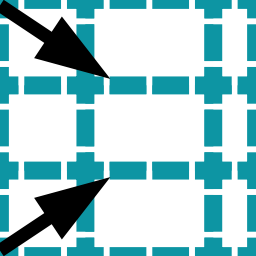 4.2.1 Heterogeneous Grid
Generate a grid where cells along each Axis can have different sizes. Each Axis receives an independent list of dimension values; the component creates all combinations. For example, three X sizes, four Y sizes, and two Z sizes produce 3×4×2 = 24 Grid Boxes, each with dimensions determined by its position along each Axis. The homogeneity of the Homogeneous Grid means all cells are identical; here, each column, row, or layer has a distinct dimension while all cells within the same column, row, or layer share that Axis value.
Behavior
Cells are placed with cumulative offsets along each Axis, so each cell starts exactly where the previous one ends. The resulting Grid Boxes can have different sizes in one, two, or all three dimensions.
What makes a grid Heterogeneous. The grid is only Heterogeneous when the size lists contain more than one distinct value along at least one Axis, so that neighbouring Slots end up with different dimensions. If all three lists contain a single repeated value, the result is identical to Homogeneous Grid. A grid is not Heterogeneous merely because its cells are non-cubic - a Homogeneous Grid with Diagonal (2, 1, 3) already has rectangular cells; every cell is still the same size.
A practical way to create varied-size input lists is the Grasshopper Gene Pool component for interactively dragging individual values and seeing the resulting grid update in real time.
For the Heterogeneous Grid to work with WFC, Module invariants are required whose dimensions match the different cell sizes. For example, if X sizes are [1, 2], you need at least one Module with X = 1 and one with X = 2, both sharing the same Module Name. Rules are defined once per name and apply to every dimensional invariant of that name.
Variant design contract. Sharing a Module Name across different sizes asserts that all size variants are functionally equivalent: the Solver will allow any invariant in any position where the name fits, regardless of which size ends up there. If the connection geometry or logic differs between sizes, the two variants should have separate names and separate Rules. See example 1.8 - The invariant design contract for a detailed worked example.
The output is a flat list of Grid Boxes. Flatten the output when passing it to the Construct Slot component.
Inputs
| Name | Nickname | Type | Access | Description |
|---|---|---|---|---|
| Base Plane | P | Plane | Item | Grid Orientation and origin plane. |
| X Sizes | X | Number | List | Dimensions of grid cells in the X Direction. |
| Y Sizes | Y | Number | List | Dimensions of grid cells in the Y Direction. |
| Z Sizes | Z | Number | List | Dimensions of grid cells in the Z Direction. |
Outputs
| Name | Nickname | Type | Access | Description |
|---|---|---|---|---|
| Grid Boxes | B | Grid Box | Tree | Heterogeneous Grid GridBox instances with variable cell sizes. |
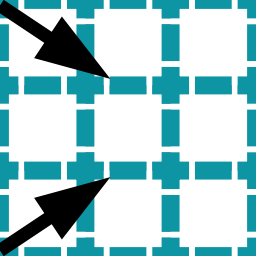 4.2.2 Homogeneous Grid
Generate a regular Envelope made of uniform cells. All cells share the same X, Y and Z dimensions, arranged in a cuboid block. This is the most common starting point for a WFC setup.
Behavior
Creates a 3D array of identically-sized Grid Boxes, aligned to the given base plane. Each individual cell can have different X, Y, and Z dimensions; the homogeneity means all cells in the grid share exactly those same dimensions. A single-cell grid (X Count = Y Count = Z Count = 1) is valid and can be used for any purpose that requires an isolated cell.
Non-cubic is not Heterogeneous. Setting the Diagonal to (2, 1, 3) produces rectangular cells, but every cell in the grid is still identical - the grid is still Homogeneous. You still need only one Module size. Use Heterogeneous Grid only when you need neighbouring Slots to have different sizes from each other. Although cells do not need to be cubic, cubic cells (X = Y = Z) are strongly recommended: non-cubic cells constrain which Modules fit which Slots and can make the setup harder to manage.
The output is a data tree of Grid Boxes, flattened by the component, in row-major order (X changes fastest, then Y, then Z). Connect directly to the Construct Slot component.
Inputs
| Name | Nickname | Type | Access | Description |
|---|---|---|---|---|
| Base Plane | P | Plane | Item | Grid Orientation and origin plane. |
| Diagonal | D | Vector | Item | Grid cell dimensions (width, depth, height). |
| X Count | X | Integer | Item | Number of grid cells in the X Direction. |
| Y Count | Y | Integer | Item | Number of grid cells in the Y Direction. |
| Z Count | Z | Integer | Item | Number of grid cells in the Z Direction. |
Outputs
| Name | Nickname | Type | Access | Description |
|---|---|---|---|---|
| Grid Boxes | B | Grid Box | Tree | Homogeneous Grid GridBox instances with uniform cell sizes. |
 4.2.3 Add Boundary Layer
Surround an existing Grid or Envelope with one or more additional layers of Grid Boxes. Use this to control what appears at the outer edges of the Envelope - for example, to ensure open or closed boundary conditions, or to add a ring of dedicated “cap” Modules that frame the interior.
Behavior
Generates new Grid Boxes that are adjacent to - but not part of - the input Envelope. The component outputs only the new boundary cells, not the original ones. The boundary Grid Boxes are typically converted to a separate set of Slots (using Construct Slot with different Module allowances than the interior), and only then merged with the interior Slots before passing all Slots to the WFC Solver.
You can restrict which Faces of the Envelope get a boundary layer using the six directional toggles. For example, disable Z+ to leave the top of the Envelope open. When working with non-rectangular (masked) Envelopes, the boundary grows the actual shape outward along its real Face - a masked sphere thickens into a shell - rather than filling out to the bounding box, so each new layer can extend past the Envelope's original extent in every enabled Direction.
Inputs
| Name | Nickname | Type | Access | Description |
|---|---|---|---|---|
| Grid Boxes | B | Grid Box | List | All GridBox objects to surround with boundary layers. |
| Diagonal Neighbors | D | Boolean | Item | Include diagonal Grid Box neighbors. |
| Layers | L | Integer | Item | Number of layers to add. |
| Include +X | X | Boolean | Item | Scan for boundary in positive X Direction |
| Include +Y | Y | Boolean | Item | Scan for boundary in positive Y Direction |
| Include +Z | Z | Boolean | Item | Scan for boundary in positive Z Direction |
| Include -X | -X | Boolean | Item | Scan for boundary in negative X Direction |
| Include -Y | -Y | Boolean | Item | Scan for boundary in negative Y Direction |
| Include -Z | -Z | Boolean | Item | Scan for boundary in negative Z Direction |
Outputs
| Name | Nickname | Type | Access | Description |
|---|---|---|---|---|
| Boundary Layer Boxes | B | Grid Box | List | New Grid Boxes forming the boundary layers; ready for use as Slot Envelopes. |
 4.2.4 Are Grid Boxes Boundary
Identify which Grid Boxes in an Envelope sit on its outer boundary. Returns a boolean per input box - true if the box is within the specified number of layers from the outer edge. Use this to separate boundary cells from interior cells to treat them differently - assign dedicated boundary Modules, restrict allowed candidates, or simply visualize the distinction.
Behavior
The component scans the Envelope from the outside inward. Any Grid Box that has fewer occupied neighbors than expected in the enabled Axes is considered a boundary box. With Layers set to 1, only the outermost ring is flagged. With 2, the two outermost rings are flagged, and so on.
The output boolean list matches the input list order one-to-one. A convenient workflow is to feed the boolean pattern into a Dispatch component to split the Grid Boxes (or their resulting Slots) into boundary and interior groups, then apply different constraints to each.
Inputs
| Name | Nickname | Type | Access | Description |
|---|---|---|---|---|
| Grid Boxes | B | Grid Box | List | All GridBox objects to analyze. |
| Layers | L | Integer | Item | Number of outer layers to identify as boundary. |
| Include X | X | Boolean | Item | Scan for boundary in X Direction. |
| Include Y | Y | Boolean | Item | Scan for boundary in Y Direction. |
| Include Z | Z | Boolean | Item | Scan for boundary in Z Direction. |
Outputs
| Name | Nickname | Type | Access | Description |
|---|---|---|---|---|
| Boolean Pattern | B | Boolean | List | True if the Grid Box is on the boundary of the grid Envelope. |
 4.2.5 Deconstruct Grid Box
Extract the center plane, diagonal dimensions and Axis intervals from a Grid Box. Useful for working with the geometry of individual cells directly, for example to generate Module geometry at a cell’s exact position and size.
Behavior
Decomposes each Grid Box in the input tree into its geometric components. The output tree structure mirrors the input tree. Invalid Grid Boxes produce null outputs in their branch positions (with a component warning), preserving index alignment with the input.
Inputs
| Name | Nickname | Type | Access | Description |
|---|---|---|---|---|
| Grid Box | B | Grid Box | Tree | A GridBox to deconstruct into its geometric components. |
Outputs
| Name | Nickname | Type | Access | Description |
|---|---|---|---|---|
| Center Plane | P | Plane | Tree | The plane at the center of the GridBox with the box's Orientation. |
| Diagonal | D | Vector | Tree | Vector representing the X, Y, and Z dimensions of the GridBox. |
| X Interval | X | Interval | Tree | The interval along the X Axis (centered at origin: -halfX to +halfX). |
| Y Interval | Y | Interval | Tree | The interval along the Y Axis (centered at origin: -halfY to +halfY). |
| Z Interval | Z | Interval | Tree | The interval along the Z Axis (centered at origin: -halfZ to +halfZ). |
 4.2.6 Grid Topology
Extract the discrete grid coordinates and adjacency map of an Envelope. For each Grid Box, the component reports its integer position in the grid and which other boxes are its neighbors. Useful when reasoning about spatial relationships within the Envelope in Grasshopper - for example, to drive custom Module allowances based on grid position.
Behavior
The Relative Coordinates output gives each Grid Box’s integer (column, row, layer) position within the grid, expressed as a Point. These are not world-space coordinates - they are grid indices. Index (0, 0, 0) is always the first box.
The Topology output is a tree where branch N contains the indices of all Grid Boxes adjacent to box N. This is analogous to the Grasshopper Proximity 3D component, but works in discrete grid-step distances rather than Euclidean distance, and respects the actual cell connectivity of the Envelope rather than raw point clouds.
Inputs
| Name | Nickname | Type | Access | Description |
|---|---|---|---|---|
| Grid Boxes | B | Grid Box | Tree | List of GridBox items that define the grid layout. Provide a single flat list (one branch). |
| Diagonal Neighbors | D | Boolean | Item | Include diagonal neighbor boxes when computing topology (true/false). |
| Bi-Directional Topology | BiDi | Boolean | Item | When true, topology lists neighbors in both positive and negative Directions. When false, topology lists only neighbors in the positive Direction. |
Outputs
| Name | Nickname | Type | Access | Description |
|---|---|---|---|---|
| Relative Coordinates | C | Point | List | Relative grid coordinates for each provided GridBox, useful for visualization and indexing. |
| Topology | T | Integer | Tree | Tree of integer neighbor indices: for each Grid Box (by index) the connected neighbor indices are listed. |
 4.2.7 Neighbor Grid Boxes
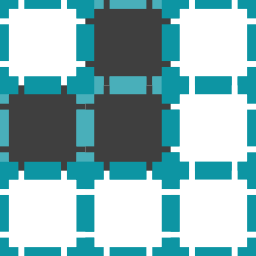
Find the Grid Boxes that are adjacent to a given set of focus cells. Given a list of focus indices, the component returns the indices of all Grid Boxes within the specified search distance (in grid steps) that are not themselves focus boxes. Useful for selecting “everything around” a particular sub-region of the Envelope.
Behavior
The search follows Grid Topology (not Euclidean distance), so a distance of 1 returns only directly adjacent cells, 2 includes those plus their neighbors, and so on. The focus cells themselves are excluded from the output.
A typical workflow is to use the Are Grid Boxes Boundary component to get boundary indices, then feed those into Neighbor Grid Boxes to find the row of cells just inside the boundary. You can then use a Dispatch component to separate neighbor cells from the rest and apply different Module allowances to each group.
Inputs
| Name | Nickname | Type | Access | Description |
|---|---|---|---|---|
| Grid Boxes | B | Grid Box | List | List of GridBox objects representing the grid to analyze. Provide a flat list (flattened) of boxes. |
| Grid Box Indices | I | Integer | List | Focus Indices. Indices of Grid Boxes for which neighbor indices should be computed. Provide indices relative to the supplied Grid Boxes list. |
| Layers | L | Integer | Item | Maximum search distance (in grid steps) to consider when collecting neighbor boxes. Defaults to 1. |
| Include X | X | Boolean | Item | Enable scanning for neighbors along the X Axis. |
| Include Y | Y | Boolean | Item | Enable scanning for neighbors along the Y Axis. |
| Include Z | Z | Boolean | Item | Enable scanning for neighbors along the Z Axis. |
Outputs
| Name | Nickname | Type | Access | Description |
|---|---|---|---|---|
| Neighbor Indices | I | Integer | List | List of integer indices pointing to neighboring Grid Boxes found for the supplied focus indices. |
 4.2.8 Grid Boxes from Geometry
Generate a set of Grid Boxes whose cells cover the shape of input geometry. Use this to define a non-rectangular Envelope that follows an arbitrary form - for example a curved building mass, a terrain surface, or a point cloud.
Behavior
The component samples the input geometry at grid intersection points and creates a Grid Box for each cell that the geometry passes through or contains. The Fill Method controls whether only the surface skin is covered, only the interior volume, or both.
The sampling works by testing candidate grid positions against the geometry. When a test point lies exactly on a geometric feature (such as on a surface edge or curve endpoint), the result can be ambiguous and that position may be skipped. The component reports these cases with a remark. If Grid Boxes are missing in expected positions, try slightly offsetting, scaling, or simplifying the geometry near those gaps.
Supported geometry types: Points, Curves, untrimmed Surfaces, Breps, and Meshes. Trimmed surfaces should be converted to Breps before use (use the Convert to Brep component in Grasshopper).
Inputs
| Name | Nickname | Type | Access | Description |
|---|---|---|---|---|
| Geometry | G | Geometry | List | Input Geometry. Geometry to populate with Grid Boxes. Supported types: Points, Curves, (untrimmed) Surfaces, Breps, Meshes. |
| Base Plane | B | Plane | Item | Grid space base plane. Defines Orientation of the grid. |
| Grid Box Diagonal | D | Vector | Item | Vector specifying the grid-box size along base-plane-aligned X, Y and Z Axes. |
| Populate Method | F | Integer | Item | 0 = Surface Wrap 1 = Fill Volume 2 = Surface Wrap + Fill Volume Defaults to 2. |
| Interior Only | I | Boolean | Item | When enabled, Grid Boxes where the geometry only touches a Face boundary without penetrating inside are excluded from the result. |
Outputs
| Name | Nickname | Type | Access | Description |
|---|---|---|---|---|
| Grid Boxes | B | Grid Box | List | Generated GridBox instances suitable for constructing Slot Envelopes. |
4.3 Face
 4.3.1 Get Module Faces
Deconstruct a Module into its 6 individual Faces, one per output.
Behavior
Reads the Module’s internal Face array and outputs each Direction as a separate FaceId parameter. Returns error if Module is null or invalid. Also previews each Face directly on the input Module in the viewport, using the same rectangle/arrow/Direction-label glyph as Preview Faces, so the six outputs can be told apart by eye without wiring a separate preview component.
Inputs
| Name | Nickname | Type | Access | Description |
|---|---|---|---|---|
| Module | M | Module | Item | A Module from which individual Faces will be extracted. |
Outputs
| Name | Nickname | Type | Access | Description |
|---|---|---|---|---|
| {GH_FaceIndex.XPositive} Face | {GH_FaceIndex.XPositive} | Face ID | Item | Positive X Face. Face ID representing the Module Face that Faces the positive X Direction. |
| {GH_FaceIndex.XNegative} Face | {GH_FaceIndex.XNegative} | Face ID | Item | Negative X Face. Face ID representing the Module Face that Faces the negative X Direction. |
| {GH_FaceIndex.YPositive} Face | {GH_FaceIndex.YPositive} | Face ID | Item | Positive Y Face. Face ID representing the Module Face that Faces the positive Y Direction. |
| {GH_FaceIndex.YNegative} Face | {GH_FaceIndex.YNegative} | Face ID | Item | Negative Y Face. Face ID representing the Module Face that Faces the negative Y Direction. |
| {GH_FaceIndex.ZPositive} Face | {GH_FaceIndex.ZPositive} | Face ID | Item | Positive Z Face. Face ID representing the Module Face that Faces the positive Z Direction. |
| {GH_FaceIndex.ZNegative} Face | {GH_FaceIndex.ZNegative} | Face ID | Item | Negative Z Face. Face ID representing the Module Face that Faces the negative Z Direction. |
 4.3.2 Analyze Face
Analyze Face properties including geometry, Direction and Rule/Connector usage. Provides Direction flags, Face planes, rectangles, and used/unused classification.
Behavior
Looks up each Face’s Module, extracts Face plane and rectangle geometry, determines Direction flags, and checks Rule and Connector references. Builds output trees parallel to the input Face tree.
Inputs
| Name | Nickname | Type | Access | Description |
|---|---|---|---|---|
| Face or Module | F | Face ID | Tree | Face to analyze, obtained from the Module Faces component or other Face-producing components. A Module wired here instead is expanded into all six of its Faces. |
| Modules | M | Module | Tree | Optional list of Module objects used to resolve Face geometry and planes. If omitted, some geometric outputs will be unavailable. |
| Rules | R | Rule | Tree | Optional list of Rule objects used to determine Face usage patterns. When provided, outputs will indicate whether Faces are used by any Rule. |
| Connectors | C | Connector | Tree | Optional list of Connector objects used to determine Face usage patterns. A Face that has any Connector assigned to it is considered used. |
Outputs
| Name | Nickname | Type | Access | Description |
|---|---|---|---|---|
| Module Name | MN | Module Name | Tree | The Module Name associated with the analyzed Face (normalized to lowercase). |
| Face Planes | FP | Plane | Tree | Local planes describing the Face geometry when Module geometry is provided. |
| Face Rectangles | FR | Rectangle | Tree | Projected rectangle outlines of each Face when Module geometry is available. |
| Face Direction | FD | Vector | Tree | Unit vectors describing the Face normal in the Face base plane; returned as a tree parallel to Face Planes. |
| Is X | X | Boolean | Tree | True if the Face points in the X Direction of the Module. |
| Is Y | Y | Boolean | Tree | True if the Face points in the Y Direction of the Module. |
| Is Z | Z | Boolean | Tree | True if the Face points in the Z Direction of the Module. |
| Is -X | -X | Boolean | Tree | True if the Face points in the -X Direction of the Module. |
| Is -Y | -Y | Boolean | Tree | True if the Face points in the -Y Direction of the Module. |
| Is -Z | -Z | Boolean | Tree | True if the Face points in the -Z Direction of the Module. |
| Face Use Pattern | FUP | Boolean | Tree | true when the Face is referenced by any provided Rule or Connector. |
| Used Faces | FU | Face ID | Tree | Faces that are referenced by at least one Rule or Connector. Flattened for convenience. |
| Unused Faces | FUU | Face ID | Tree | Faces that are not referenced by any provided Rule or Connector. Flattened for convenience. |
 4.3.3 Compare Faces
Compare two Faces for identity, Module membership and Direction relationship.
Behavior
Compares Module Name, Face Index and Direction. Same Axis = same or opposite; different Axis = skew.
Inputs
| Name | Nickname | Type | Access | Description |
|---|---|---|---|---|
| Face | F | Face ID | Item | First FaceId to compare. Obtain Faces from the Module Faces component or other Face-producing components. |
| Face 2 | F2 | Face ID | Item | Second FaceId to compare against the first. Obtain Faces from the Module Faces component. |
Outputs
| Name | Nickname | Type | Access | Description |
|---|---|---|---|---|
| Identical | I | Boolean | Item | True if the Faces are identical. |
| Same Module | M | Boolean | Item | True if the Faces refer to the same Module. |
| Same Direction | D | Boolean | Item | True if the Faces Face the same Direction. |
| Opposite Direction | O | Boolean | Item | True if the Faces Face the opposite Direction. |
| Skew Direction | S | Boolean | Item | True if the Faces Face skew Directions. |
 4.3.4 Faces from Point
Detect Module Faces at a point location. Returns all Faces whose geometry contains the given point.
Behavior
Tests point containment against each Face of each Module. Warns if point matches zero Faces; remarks if point matches more than one.
Inputs
| Name | Nickname | Type | Access | Description |
|---|---|---|---|---|
| Modules | M | Module | List | All available Module objects to Sample when detecting Faces. Provide a flattened list. |
| Point Tag | Pt | Point | Item | Point marking a location to Sample for Module Faces; the component returns any Faces whose geometry contains this point. |
Outputs
| Name | Nickname | Type | Access | Description |
|---|---|---|---|---|
| Faces | C | Face ID | List | List of FaceId objects whose geometry contains the provided point. |
 4.3.5 Touching Faces from Slots
Scan Slots and extract touching Module Faces where adjacent Slots meet. Useful for discovering which Module Faces need Rules.
Behavior
Builds a spatial index of Slot positions, finds adjacent Slot pairs along each Axis, and extracts Face pairs where Faces touch. Groups results by source (positive-Direction Faces) and target (negative-Direction Faces). Each branch of the input is processed independently. Non-deterministic Slots produce all possible combinations with a warning.
Inputs
| Name | Nickname | Type | Access | Description |
|---|---|---|---|---|
| Slots | S | Slot | Tree | Slot Envelopes to scan for touching Faces. Each branch is scanned independently. |
Outputs
| Name | Nickname | Type | Access | Description |
|---|---|---|---|---|
| Source Faces | SF | Face ID | Tree | Tree of FaceId entries representing the source-side Faces found where Slots touch their positive neighbors. |
| Target Faces | TF | Face ID | Tree | Tree of FaceId entries representing the target-side Faces found where Slots touch their negative neighbors. |
 4.3.6 Used Faces
Filter Module Faces by Rule and Connector coverage. Partitions every Module’s six Faces into used (referenced by at least one Rule or Connector) and unused (no reference). Wire the Unused output into Construct Terminator to mark uncovered Faces as boundary-safe, or use it to assign indifference Connectors.
Behavior
Collects all Face references from Rules (source and target) and Connectors (Module + Face Index) into a set, then tests each of the six Faces of every input Module against that set. Both inputs are optional — when neither is provided all Faces are reported as unused. Output trees mirror the input Module tree structure with one grafted branch per Module.
Inputs
| Name | Nickname | Type | Access | Description |
|---|---|---|---|---|
| Modules | M | Module | Tree | Modules whose Faces will be checked for Rule and Connector coverage. The input tree structure is preserved in the output with one grafted branch per Module. |
| Rules | R | Rule | Tree | Rules to check. A Face referenced as source or target of any Rule is considered used. |
| Connectors | C | Connector | Tree | Connectors to check. A Face that has any Connector assigned to it is considered used. |
| Terminators | T | Terminator | Tree | Optional. When provided, a Face that has a Terminator assigned to it is considered used. This prevents indifference from generating Rules for terminated Faces. |
Outputs
| Name | Nickname | Type | Access | Description |
|---|---|---|---|---|
| Used Faces | F | Face ID | Tree | Faces referenced by at least one Rule, Connector, or Terminator. One branch per input Module, preserving the input tree structure. |
| Unused Faces | UF | Face ID | Tree | Faces not referenced by any provided Rule, Connector, or Terminator. One branch per input Module, preserving the input tree structure. |
 4.3.7 Group Faces by Voxels
Groups Module Faces by identical voxel fingerprint. Uses Face-local bidirectional ray scanning to build voxel fingerprints and groups Faces whose fingerprints are structurally identical.
Behavior
For each branch of the Modules input tree, builds a voxel fingerprint for every Face via bidirectional ray scanning. Fingerprints are grouped using structural equality on the voxel array. Faces with no occupied voxels are skipped. Output extends the input tree by one layer: each sub-branch contains Face IDs sharing the same geometry pattern.
Inputs
| Name | Nickname | Type | Access | Description |
|---|---|---|---|---|
| Modules | M | Module | List | All Module objects to analyse. Provide a flattened list. |
| Voxel Dimension | VD | Vector | Item | Number of voxels per Module Axis (X, Y, Z). Each component specifies how many voxels fit into the Module in the respective Direction. The Face grid resolution is derived from the two components that span the Face. |
| Precision | P | Integer | Item | Number of rays cast per cell. Higher values detect smaller features with higher accuracy but reduce speed. |
| Inner Depth | ID | Number | Item | Scan depth inside the cage as a fraction of the Module depth along the Face normal. 0.5 = half the Module depth, 1.0 = full depth. |
| Outer Depth | OD | Number | Item | Scan depth outside the cage as a fraction of the Module depth along the Face normal. 0.0 = flush with the Face. |
Outputs
| Name | Nickname | Type | Access | Description |
|---|---|---|---|---|
| Face Groups | FG | Face ID | Tree | Data tree where each branch contains Face IDs that share the same voxel fingerprint. |
 4.3.8 Preview Faces
Visualize Faces with their geometry, anchor planes and Direction indicators. Display-only component (no geometry outputs).
Behavior
Draws rectangles at Face planes with Direction arrows colored by Axis (X = red, Y = green, Z = blue). Supports both viewport preview and baking to Rhino with grouped geometry.
Inputs
| Name | Nickname | Type | Access | Description |
|---|---|---|---|---|
| Faces or Modules | F | Face ID | Tree | Faces to preview, obtained from the Module Faces component or other Face-producing components. A Module wired here instead is expanded into all six of its Faces. |
| Modules | M | Module | Tree | Available Module objects used to resolve Face geometry for preview; provide a flattened list. |
4.4 Main
 4.4.1 Construct Assembly
Build a complete Discrete Assembly in a single step. Expands rotation variants, transforms Connectors to match rotated Modules, generates Rules from Connectors and Connector Pairs, removes Disallowed Rules, enforces Exclusive Rules, applies indifference for unconnected Faces, merges all Rule sources, deduplicates Modules and Rules, runs a full Audit, and packages everything into an Assembly consumed by the Solver.
Behavior
Construct Assembly replaces the manual wiring pattern of Module Rotations → Rule merging → Audit with a single component. It performs rotation expansion on all Modules with rotation flags set, remaps existing Rules for the new variants, transforms Connectors to match the expanded variants, generates explicit Rules from Connectors and Allowed Connector Pairs (respecting symmetry flags and rotations), merges these with manually provided Allowed Rules, removes Disallowed Rules (explicit and from Disallowed Connector Pairs) — including automatic expansion of Disallowed Rules through all rotation variants — enforces Exclusive Rules (explicit and from Exclusive Connector Pairs) by removing all other Rules referencing the same Faces, deduplicates everything, optionally generates Indifferent Rules for uncovered Faces, and runs the same Audit logic as the standalone Audit component.
During Rule remapping, each rotation variant receives a Face permutation that maps original Face Indices to their new positions after rotation. When both sides of a Rule are rotation-expanded, only variants with the identical rotation (same Face permutation) are paired - the spatial neighborhood rotates as a rigid unit. Mismatched rotations would produce geometrically wrong Rules even when Face Directions remain opposite. When only one side is expanded, only the rotated side’s Face Index is permuted.
The output Assembly is an opaque container. Connect it to the WFC Solver, to a Deconstruct Assembly component for inspection, or to Materialize Assembly after solving. The AllowIndifferent flag is now handled here instead of on the Solver.
Allowed Connector Pair deduplication. Construct Assembly removes exact-duplicate Allowed Connector Pairs from the input list before generating any Rules. Cross-referencing Connector lists on the canvas easily produces exact duplicates, and the Rule generator is O(Modules² × Axes) per pair - deduplicating up front saves substantial computation on larger definitions. A single Remark reports how many duplicates were dropped. Note that A→B and B→A are kept as separate entries because the downstream Rule generator treats Direction as meaningful.
Allow-all Slot resolution. Construct Assembly also resolves any allow-all Slots (Slots created without explicit Module Names) it receives. After rotation expansion has produced the final Module set, every allow-all Slot is filled with the deduplicated list of Module Names, assigned uniform Weights of 1.0, and its Total Modules Count is set to match. Modules whose box dimensions do not match the Slot are filtered out, so mixed- dimension setups still produce dimension-consistent Slots. A single summary Remark reports how many Slots were resolved and to how many Modules - one Remark per Slot would flood the log for large allow-all Envelopes.
Extending Rules and Connectors. A Rule, a Connector, or a Connector Pair may reference something the Assembly does not contain - a Rule or Connector naming a missing Module, or a Connector Pair naming a Connector that no Connector defines. These are treated as extending references rather than errors: the Solver ignores any Rule it cannot tie to a real Module, so Construct Assembly keeps building and reports them as a Warning naming what was unmatched. This applies to the Allowed, Disallowed, and Exclusive Rule and Connector Pair inputs alike (Terminators on a missing Module are likewise dropped with a Warning). A Module itself must still be complete - a Module Face with no Rule and no Connector is reported as uncovered, below.
Uncovered-Face diagnostics. Two separate warnings report Faces not described by any Rule or Connector: one for authored Modules (directly actionable) and one for rotation variant Modules (informational - the Solver simply prunes a variant in the Directions it cannot cover). The coverage verdict is computed by the engine from the final Rule set, so enabling Indifference (which injects covering Rules) clears it. In addition, the output Discrete Assembly marks every such Face directly in the viewport with a red circle-and-cross badge on the Module preview, so the offending Faces can be found at a glance (most visible with Indifference disabled).
Slot-fault diagnostics. Slot-level faults are marked the same way: every Slot that refers to an unknown Module Name, or whose allowed Modules have no variant with matching dimensions (the Audit's Slots With Unknown Modules and Slots Without Fitting Modules), gets a red circle-and-cross badge laid flat at the Slot box centre. The marks are recomputed on every solve, so they clear as soon as the fault is resolved. Use the Audit Assembly report to see which fault class each marked Slot falls into.
Rule preview and appearance. The output Assembly draws its Rules as preview wires colored by kind - Allowed green, Disallowed red, engine-generated Indifferent blue - matching the web Rules graph (the standalone Preview Rule component still colors arbitrary Rule lists by Face Axis). Authored Rules are drawn exactly as wired - including Disallowed Rules on a collapsed Envelope Axis - because you made them; the Clean up input below is what removes the ones that can never apply. Authored per-mesh display colors of the source geometry are carried into the exported document as per-mesh materials, so a Module assembled from differently colored meshes keeps each color.
Clean up. With the Clean up input enabled, Construct Assembly drops Rules that can never apply to the Slot layout and Modules left unplaceable by that pruning. A Rule is dead when its two Faces are not opposite under any allowed rotation (a cross-Axis pair like -X to +Z is never a real adjacency), when its Axis is collapsed (a flat Envelope has no neighbor along it), or when its two Modules are never allowed in two adjacent Slots; such Rules leave both the effective Rule set and the Disallowed-Rule preview. Any authored Module with no surviving rotation variant after this pruning is removed from the Assembly's Module set and every Slot's allow-list, since the Solver can never place it. Clean up also runs constraint Propagation, narrowing each Slot to the Modules that can actually occupy it. Everything is gated on the input: left off, every Rule and Module you wired is preserved.
Partial and invalid Assemblies. Construct Assembly never suppresses its output. A recoverable build problem - required Terminators requested but none provided, or a literally empty Envelope (no Modules or no Slots) - no longer aborts the component. Instead it builds the most complete Assembly it can, reports each problem as its own Warning, and marks the Assembly invalid. An empty Envelope still emits an Assembly that carries whatever Modules and Slots were authored. The downstream WFC Solver refuses any Assembly whose IsValid flag is false, so an invalid Assembly is caught one component later with the problems already named on the canvas, rather than vanishing silently at construction time.
Inputs
| Name | Nickname | Type | Access | Description |
|---|---|---|---|---|
| Modules | M | Module | List | Modules with rotation flags still set. |
| Slots | S | Slot | List | Slot Envelopes. |
| Slot Priorities | SP | Number | List | Per-Slot priority for guided solve ordering. Higher-priority Slots are resolved first by WFC and picked first by the growth Solver. Parallel to the Slots input (longest list: shorter lists repeat the last value). Default 1.0. |
| Allowed Rules | R | Rule | List | Manually defined allowed Rules (optional). |
| Disallowed Rules | DR | Rule | List | Rules to remove from the final Rule set (optional). |
| Exclusive Rules | ER | Rule | List | Rules whose Faces become exclusive: all other Rules referencing those Faces are removed, then the exclusive Rules are added (optional). |
| Connectors | C | Connector | List | All Connector-to-Face bindings (optional). |
| Allowed Connector Pairs | CP | Connector Pair | List | Connector compatibility declarations (optional). |
| Disallowed Connector Pairs | DCP | Connector Pair | List | Connector Pairs whose generated Rules will be removed (optional). |
| Exclusive Connector Pairs | ECP | Connector Pair | List | Connector Pairs whose Faces become exclusive: all other Rules referencing those Faces are removed, then the exclusive Rules are added (optional). |
| Remove Unused Connectors | RU | Boolean | Item | A Connector placed on a Face only does something once it is matched in a Connector Pair. If a Connector is never paired, its Face stays occupied and cannot connect to anything. Turn this on to drop those unpaired Connectors so their Faces are freed and can be treated as Indifferent. This changes which Rules are generated. Separate from Clean up, which only trims the finished Assembly and never touches Connectors. Default: false. |
| Require Terminators | RT | Boolean | Item | When true, some Modules are required to be designated to be on the boundary of the Envelope. Terminators define which Module Faces may touch the boundary; any Face without a Terminator cannot be placed on the outer edge. Requires at least one Terminator in each Direction when enabled. Default: false. |
| Terminators | T | Terminator | List | Terminators (optional). Boundary-facing markers on Module Faces. When Require Terminators is enabled, the occupied frontier is capped so each exposed Slot Face on a non-flat Axis must be filled by a Module that carries a Terminator on the matching Face. Flat-Axis Faces (the front and back of a 2D Envelope) are not capped and need no Terminator. |
| Indifference | I | Boolean | Item | Enable indifference for unconnected Faces. Default: true. |
| Clean up | Cl | Boolean | Item | Trims the finished Assembly: drops Module Rotations the Rules make impossible, plus Modules and Rules that nothing references. This makes the Assembly smaller and surfaces contradictions early, without changing the solve result. The Solver already does this automatically, so turn it on only to preview the cleaned Assembly here. Does not remove Connectors (use Remove Unused Connectors for that). Default: false. |
Outputs
| Name | Nickname | Type | Access | Description |
|---|---|---|---|---|
| Assembly | A | Discrete Assembly | Item | Complete, audited Discrete Assembly ready for solving. |
 4.4.2 Deconstruct Assembly
Extract all authored inputs from a Discrete Assembly: Modules, Slots, Connectors, Connector Pairs, Rules, Terminators, and the Indifference and Require Terminators flags.
Behavior
Extracts the authored side of the Assembly container - the data exactly as supplied on Construct Assembly before rotation expansion and Rule generation. Rotation variants generated from Module symmetry flags are not included; use Dissolve Assembly to access the expanded Solver-ready state.
After solving, the Slots output returns authored Slots with narrowed Module Names: rotation variants in each solved Slot are projected back to their source Module Name, and the result is intersected with the authored Slot's original Module Names list so order and Weights are preserved. All Audit outputs have moved to the Audit Assembly component.
Inputs
| Name | Nickname | Type | Access | Description |
|---|---|---|---|---|
| Assembly | A | Discrete Assembly | Item | Any Discrete Assembly from Construct Assembly or the Solver. |
Outputs
| Name | Nickname | Type | Access | Description |
|---|---|---|---|---|
| Modules | M | Module | List | Authored Modules as supplied on Construct Assembly. Rotation variants generated from Symmetry are not included - use Dissolve Assembly to see them. |
| Slots | S | Slot | List | Authored Slots in their original order. After solving, each Slot's allowed Module Names are narrowed to the surviving source Modules (rotation variants are projected back to their source). |
| Connectors | C | Connector | List | Authored Connectors as supplied on Construct Assembly. |
| Allowed Connector Pairs | CP | Connector Pair | List | Connector Pairs the user supplied as allowed. |
| Disallowed Connector Pairs | DCP | Connector Pair | List | Connector Pairs the user supplied as disallowed. |
| Exclusive Connector Pairs | ECP | Connector Pair | List | Connector Pairs the user supplied as exclusive. |
| Rules | R | Rule | List | Explicit Rules the user supplied as allowed. |
| Disallowed Rules | DR | Rule | List | Explicit Rules the user supplied as disallowed. |
| Exclusive Rules | ER | Rule | List | Explicit Rules the user supplied as exclusive. |
| Indifference | I | Boolean | Item | Whether indifference was enabled on Construct Assembly. |
| Terminators | T | Terminator | List | Authored terminators - boundary-facing Face markers. |
| Require Terminators | RT | Boolean | Item | Whether Require Terminators was enabled on Construct Assembly. |
 4.4.3 Dissolve Assembly
Extract the fully expanded Solver-ready state from a Discrete Assembly: expanded Modules (with rotation variants), expanded Slots, and explicit + Indifferent Rules. For the authored inputs use Deconstruct Assembly instead.
Inputs
| Name | Nickname | Type | Access | Description |
|---|---|---|---|---|
| Assembly | A | Discrete Assembly | Item | Any Discrete Assembly from Construct Assembly or the Solver. |
Outputs
| Name | Nickname | Type | Access | Description |
|---|---|---|---|---|
| Modules | M | Module | List | All Modules the Solver runs on: authored Modules, their rotation variants, and - when Require Terminators was enabled - the synthesized boundary Module. |
| Slots | S | Slot | List | All Slots the Solver runs on: authored Slots and - when Require Terminators was enabled - the synthesized boundary Slots wrapping the Envelope. |
| Explicit Rules | R | Rule | List | Manual, Connector-generated, terminator-generated, and boundary self-adjacency Rules (everything except indifference). |
| Indifferent Rules | IR | Rule | List | Rules auto-generated for Faces not covered by explicit Rules. |
 4.4.4 WFC Solver
The WFC Solver runs the Wave Function Collapse algorithm on the supplied Envelope. It takes a Discrete Assembly as its sole data input, progressively eliminating Module candidates from each Slot - guided by adjacency constraints and weighted Entropy - until every Slot holds exactly one Module, or the Attempt ends in a Contradiction. Returns an output Assembly with solved Slot states, status flags, Seed values, and a Solver log.
Behavior
Before starting, the Solver validates all inputs and checks whether the Envelope is already Deterministic (fully solved) or already Contradictory (cannot be solved at all). If so, it stops immediately without running any solve steps.
The Solver then runs one single-threaded Attempt using the chosen Seed. This is a fast, cheap check: if the problem is easy it often finds a solution or reaches a Contradiction right away, with no extra overhead. The Solver spawns parallel workers on the remaining CPU cores - each with an incremented Seed, searching simultaneously - when that first Attempt does not produce a definitive result, or when Return First is off and every Attempt's solution is wanted (so an easy Envelope that solves on the first try still yields one Assembly per successful Seed).
Each Attempt works by repeating two steps. First it picks the Slot with the fewest remaining candidates and assigns it a single Module, making it Deterministic (an Observation). Then it cascades the consequences of that choice through the whole Envelope, eliminating Module candidates that would violate Rules with neighboring Slots (this is called Propagation). The cycle continues until either every Slot has exactly one candidate (Deterministic - success) or some Slot has no candidates left (Contradictory - failure). A Contradictory result is retried with a different Seed.
The Solver log (Report output) shows a summary of preprocessing, the number of Rules used (including any auto-generated Indifferent Rules), and the outcome of each Attempt.
Seeds
The Random Seed input controls the starting point for the Solver's random choices. For the same Slots, Modules, and Rules, the same Seed always produces the same result. Seeds themselves have no inherent meaning - they are arbitrary integers that initialize the random number generator. There is no relationship between the Seed value and the visual outcome; consecutive Seeds (e.g. 42, 43, 44) give independent, unrelated results. To explore the solution space, increment the Seed by 1 for each variation, or use Return First = false with Max Attempts set to the desired number - the Solver automatically increments the Seed for each Attempt. When a result is satisfactory, record the Seed from the Seeds output to reproduce it exactly later.
Indifferent Faces
Every Module has six Faces - one per Face. To be valid for solving, every Face that appears on a Module allowed in at least one Slot must be referenced by at least one Rule. A Face with no Rule provides no instruction: the Solver cannot determine what that Module may be placed next to.
Indifferent Faces are Faces with no explicit Rule that are automatically allowed to connect to any other uncovered Face facing the opposite Direction on the same Axis. The Solver generates these implicit pairings internally at solve time. The effect is equivalent to having manually written a Rule that permits all uncovered Faces to freely connect to each other - which is the same behavior as the Indifferent Rule in Monoceros 1.
This behavior is controlled by the Indifference input on Construct Assembly. When enabled, Construct Assembly generates Indifferent Rules for uncovered Faces before packaging the Assembly. When disabled, any uncovered Face is treated as a hard error.
To inspect which Faces are uncovered before solving, use the Faces Not In Rules output on the Audit Assembly component. Connect those Faces to a Preview Faces component to visualize them in the viewport, or use them as input to a Rule-construction component to add explicit Rules for those pairs.
The Audit Assembly report marks uncovered Faces as warnings - not errors - because Construct Assembly can handle them via indifference. The Slots Suitable for Solver output remains true even when Faces are uncovered - it only turns false for hard errors such as an invalid grid, unknown Module Names, or Contradictory Slots.
When Indifferent pairings are generated, the output log shows the total Rule count as N (M Indifferent), so you can see exactly how many Rules were auto-generated versus explicitly authored.
Limits
The free tier caps the WFC Solver at a limited number of runs per fixed time window (windows are aligned to UTC clock boundaries); paid tiers (Annual, Edu, Lifetime) are unlimited. Each Solver invocation that produces a result counts as one run regardless of the Max Attempts setting. The component footer shows a live counter indicating how many runs remain and when the window resets.
Regardless of tier, the Solver supports a maximum of 16,370 distinct Module Names across all Slots. Each rotation variant of a Module counts as a separate name - a single Module design can produce up to 24 Orientation invariants (from 90° turns around X, Y and Z Axes), so the limit accommodates roughly 682 fully-expanded unique designs, or more if not every Module uses all three rotation Axes. Exceeding this Module-name limit causes the Solver to report an error and stop without producing results.
Run input gate
The WFC Solver has a mandatory boolean Run input (default false). The Solver only executes when Run is explicitly set to True, which prevents upstream slider changes from accidentally burning through the free tier's run budget. Connect a Boolean Toggle or a Button component.
Inputs
| Name | Nickname | Type | Access | Description |
|---|---|---|---|---|
| Assembly | A | Discrete Assembly | Item | A Discrete Assembly from Construct Assembly. |
| Random Seed | S | Integer | Item | Seed value for the random number generator. |
| Max Attempts | A | Integer | Item | Maximum number of Solver Attempts to perform. |
| Max Observations | O | Integer | Item | Maximum number of Solver observations per Attempt. Leave default for virtually unlimited. |
| Return first | F | Boolean | Item | True = return first successful result; False = return all successful results. |
| Run | R | Boolean | Item | Set to True to execute the Solver. Defaults to False so that upstream data changes do not trigger accidental solves. Wire a Boolean Toggle or Button component. |
Outputs
| Name | Nickname | Type | Access | Description |
|---|---|---|---|---|
| Report | R | Text | Item | WFC Solver report with diagnostics and statistics. |
| Assemblies | A | Discrete Assembly | List | One solved Discrete Assembly per successful solution. |
| Deterministic | OK | Boolean | List | True if the Solver found a fully Deterministic solution. |
| Contradictory | C | Boolean | List | True if the Solver ended with a Contradictory state. |
| Seeds | S | Integer | List | Random Seed of each returned solution, aligned with the Deterministic and Contradictory outputs. When every Attempt contradicted, this is the representative Contradictory Seed (Contradictory is true for it), not a successful one. |
| Observations | O | Integer | List | Observation count of each returned solution (aligned with Seeds). |
| Attempts | A | Integer | Item | Total Attempts spent. |
 4.4.5 Audit Assembly
Analyze a Discrete Assembly for consistency and errors. Reports missing Modules, unfitting Modules, Unused Faces and other issues that may block solving or materialization. Run this component before the Solver to catch setup problems early.
Behavior
Performs comprehensive validation: verifies Slots form a valid grid, cross-references Modules against Slots and Rules, detects orphaned or unused components, identifies dimension mismatches, checks for redundant Rules, self-connecting Modules, and potential over-constraint. The text Report groups findings into Grid, Slots, Modules, Rules and warning sections. All diagnostic outputs are available.
Faces not covered by any Rule are reported as warnings rather than errors because indifference on Construct Assembly (when enabled) automatically generates matching Rules for such Faces. The Faces Not In Rules output provides the actual Face objects for visualization or further use.
Allow-all Slot check. Audit flags any Slots that are still in the allow-all state as an Error - Construct Assembly is expected to resolve them before the Audit runs, so an unresolved Slot indicates that the pipeline was bypassed. Slots that were originally allow-all but have since been resolved are reported as an informational Remark so the user is reminded that the Module set was wired implicitly for those positions.
Face Disallowed Fraction. A continuous per-Face over-constraint measure, the graded generalization of Singly Constrained Faces and Potential Over-Constraint. For each oriented Face it reports the share of dimension-compatible opposing Module Faces that no Rule permits as a neighbour, from 0 (every fitting neighbour allowed) to 1 (none allowed); a value of -1 marks a Face with no candidates because its Axis is a single-Slot grid Axis, so it can only meet the boundary. The Report adds one honest summary line from this: the worst Face, its fraction, and a conservative Lovász Local Lemma solvable annotation with its margin - an annotation only, never a solvability guarantee, since it reads false for nearly every authored config.
Diagnose Resolution. Off by default so the Audit stays fast. When enabled, Audit runs a Deterministic diagnostic solve (Seed 0) with resolution tracking and reports on the Resolution output how the Solver settles the Envelope: how many Slots it directly observed (chose and collapsed, with the observe order), how many Propagation resolved as a side effect, and how many were left unresolved, then one line per resolved Slot as [order] KIND slot@(x,y,z) module. This is the same per-Slot provenance the engine emits after any solve, so you (or an LLM) can see the actual order the Envelope collapsed and locate where a solve stalls. It is most informative on an unsolved Assembly straight from Construct Assembly; an already-solved input reports every Slot as Propagation, because its initial Canonicalization determines every Slot before any Observation.
Inputs
| Name | Nickname | Type | Access | Description |
|---|---|---|---|---|
| Assembly | A | Discrete Assembly | Item | A Discrete Assembly from Construct Assembly or the Solver. |
| Diagnose Resolution | Res | Boolean | Item | When true, runs a Deterministic diagnostic solve (Seed 0) with core resolution tracking and reports on the Resolution output how each Slot settled: observed (the Solver's own choice, with observe order), propagated (constraint Propagation resolved it), or unresolved. Off by default so the Audit stays fast. Most informative on an unsolved Assembly (from Construct Assembly); an already-solved input reports every Slot propagated. |
Outputs
| Name | Nickname | Type | Access | Description |
|---|---|---|---|---|
| Report | R | Text | Item | Human-readable Audit report grouping every finding into Grid, Slots, Modules, Rules and warning sections. Paste into a panel to read the full diagnostic. All structured outputs below are derived from the same analysis. |
| Slots Suitable for Solver | SlotsInGrid | Boolean | Item | True if the Slot Grid Boxes form a complete Axis-aligned 3D lattice the WFC Solver can consume: uniform spacing per Axis, no gaps, no overlaps, no duplicates. False means the Envelope is not shaped as a regular grid and the Solver will refuse it. |
| Grid Block Dimensions | GridDim | Vector | Item | Integer count of Slots along each world Axis, returned as a Vector {X, Y, Z}. For a 10 × 5 × 3 Envelope this is {10, 5, 3}. Zero components mean no Slots were detected on that Axis. |
| Is Grid Homogeneous | HomoGrid | Boolean | Item | True when every Slot has identical box dimensions. False means the Envelope mixes Slot sizes — Monoceros still supports this (Heterogeneous grids), but every Module Variant must match one of the Slot sizes or it cannot be placed there. |
| Slots Accommodating All Modules | SlotsAccommodatingAll | Integer | List | Indices of Slots whose Allowed Module Names list is a superset of every unique Module Name in the Assembly. Such Slots impose no per-Slot constraint on which Modules can be placed — the Solver picks freely based on adjacency Rules and neighboring Slots. Includes Slots that were constructed as allow-all (no Module Names wired on Construct Slot) and Slots manually wired with the full Module Name list. Contradictory Slots are excluded by construction. In Heterogeneous Envelopes allow-all Slots may be absent from this list because their Module Names were filtered down to the dimensionally-fitting subset during Construct Assembly resolution. |
| Slots Without Geometry | SlotsWithoutGeo | Integer | List | Indices of Slots whose allowed Module list contains only geometry-less Modules (e.g. “empty” or “void” placeholders). Usually intentional — boundary, filler or structural-only Slots — but flagged so you can verify. |
| Slots Accommodating Unknown Modules | SlotsUnknownMod | Integer | List | Indices of Slots whose Allowed Module Names list references Module Names that are not present in the Assembly’s Module list. Typically a typo or a missed merge on the canvas. |
| Slots Without Fitting Modules | SlotsUnfittingMod | Integer | List | Indices of Slots for which no Module Variant has box dimensions matching the Slot’s dimensions. Such a Slot cannot be filled at all and will produce a Contradiction during solving. Fix by adding a fitting Module Variant or by changing the Slot’s Grid Box dimensions. |
| Slots With More Fitting Modules | SlotsMoreMod | Integer | List | Indices of Deterministic Slots (a single allowed Module Name) that still have multiple Module Variants sharing that name and matching the Slot’s dimensions. On Materialize, every matching Variant is placed in the Slot — usually desirable for “swap-in alternatives”, occasionally a bug if you expected exactly one Variant. |
| Domain Of Module Weights | Weights | Interval | Item | Interval {min, max} of all per-Module Weights found across all Slots. When min == max == 1.0 all Modules are uniformly weighted and the Solver uses its cheap unweighted path; otherwise weighted Entropy / weighted Observation kicks in. |
| Module Names | ModName | Module Name | List | Deduplicated, alphabetically sorted list of every Module Name present in the Assembly. All per-name outputs below (Module Variants, Module Name Count In Slots, ...) share this index ordering — branch {i} corresponds to name {i}. |
| Module Variants | ModVar | Integer | Tree | Per-name tree. Branch {i} lists the indices (into the Assembly’s flat Module list) of every Variant sharing Module Name {i}. Variants are Modules that share a name but have different box dimensions — note that rotation does NOT produce Variants, rotated Modules get new names (e.g. “wall_z90”). Variants typically come from manually constructing several same-name Modules with different Grid Box sizes. |
| Module Name Count In Slots | ModNamInSlots | Integer | Tree | Per-name tree. Branch {i} contains a single integer: the number of Slots whose Allowed Module Names list contains Module Name {i}. Zero means the name is declared but never allowed anywhere. |
| Module Variant Count In Slots | ModInSlots | Integer | Tree | Per-Variant tree. Branch {i} contains a single integer: the number of Slots in which Module Variant {i} is actually allowed (after dimension filtering). Zero means the Variant is referenced but never fits anywhere. |
| Module Variant Never In Slots | ModNotInSlots | Integer | List | Indices of Module Variants that are not allowed in any Slot. Candidates for removal from the Assembly — they cannot be placed, so Rules involving them are dead Weight. |
| Module Variant Never In Rules | ModNotInRules | Integer | List | Indices of Module Variants not referenced by any adjacency Rule (explicit or indifference). Such Variants have no valid neighbors and will either never be placed or trigger contradictions when the Solver tries. |
| Module Variant Face Never In Rules | ModFaceNotInRules | Integer | List | Indices of Module Variants that have at least one Face unreferenced by any Rule. With Indifference enabled, Faces that have an opposing unused Face on the same Axis are auto-paired. Faces that still appear here despite Indifference have no opposing unused Face on that Axis, so they cannot be covered by any Rule. Modules listed here can never be placed by the Solver. With Indifference off, any uncovered Face makes the Assembly invalid (Construct Assembly will report an error). |
| Modules With Geometry | ModWithGeo | Integer | Tree | Per-name tree. Branch {i} lists the indices of Module Variants of Module Name {i} that carry geometry (non-empty Module.Geometry list). |
| Modules Without Geometry | ModWithoutGeo | Integer | Tree | Per-name tree. Branch {i} lists the indices of Module Variants of Module Name {i} that carry no geometry. Valid and common for void / filler Modules. |
| Modules With And Without Geometry | ModWithWithoutGeo | Integer | Tree | Per-name tree. Branch {i} is non-empty only for Module Names where some Variants carry geometry and others do not. Almost always a canvas mistake — Modules sharing a Name should behave identically, so they should either all carry geometry or all be geometry-less. |
| Modules With Identical Names and Dimensions | ModIdentDim | Integer | Tree | Per-name tree. Branch {i} lists the indices of Module Variants that share both the same Module Name {i} AND the same box dimensions. Construct Assembly rejects these upstream as true duplicates; this output is here as a diagnostic in case an Assembly bypassed that check. |
| Modules Allowed in Unfitting Slots | ModInUnfitSlots | Integer | Tree | Per-name tree. Branch {i} lists the indices of Slots that allow Module Name {i} but have no Variant of that name matching the Slot’s dimensions. Symptoms: dimension mismatch between Construct Slot and Construct Module. |
| Module Faces | ModFace | Face ID | Tree | Per-Variant tree. Branch {i} contains the 6 FaceIds of Module Variant {i} in Canonical order (+X, +Y, +Z, -X, -Y, -Z). Pair with Module Faces Use Count to see which Faces are referenced by Rules and which are not. |
| Module Faces Use Count | ModFaceUse | Integer | Tree | Per-Variant tree of integers parallel to Module Faces. Branch {i}, item {k} is the number of Rules that reference Face {k} of Module Variant {i}. Zero means the Face is unreferenced (will be auto-paired by Indifference if it is enabled). |
| Rules Referring Unknown Modules | RulUnknownMod | Integer | List | Indices (into the Assembly’s Rule list) of Rules whose source or target Module Name does not exist among the declared Modules. Usually a typo or a missed merge. |
| Rules Referring Unused Modules | RulUnusedMod | Integer | List | Indices of Rules whose source or target Module Name is declared but is not allowed in any Slot. The Rule is dead Weight — it can never fire during solving. |
| Rule Occurrence Count | RulCount | Integer | List | Parallel to the Assembly’s Rule list. Entry {i} is the number of times Rule {i} occurs in the input Rule list before deduplication. Useful to spot unintended duplicate wiring. |
| Is Rule's First Occurrence | RulFirst | Boolean | List | Is Rule’s First Occurrence. Parallel boolean mask to the Assembly’s Rule list. True only for the first occurrence of each distinct Rule. Use Cull Pattern on the Rule list with this mask to obtain a deduplicated Rule list without relying on the Solver. |
| Modules With Only Self-Connecting Rules | ModSelfOnly | Integer | List | Indices of Module Variants whose only adjacency Rules pair them with themselves. Such Variants can be placed only next to other copies of themselves — typically a mistake unless you are intentionally building isolated clusters. |
| Potential Over-Constraint | OverConstrained | Boolean | Item | True when at least one placed Module Variant has a Face not referenced by any Rule. Construct Assembly’s Indifference step auto-pairs those Faces; with Indifference off this flag indicates the Assembly is invalid and the Solver would crash. |
| Faces Not In Rules | FaceNotInRules | Face ID | List | Flat list of every Module FaceId that appears on a placed Module Variant but is not referenced by any Rule. Visualize these with Face Preview to see where the uncovered Faces are, then decide whether to wire them explicitly or rely on Indifference. |
| All Faces Indifferent | AllIndiff | Boolean | Item | True when no Face of any placed Module Variant is referenced by any explicit Rule (only indifference Rules exist). The resulting solve is effectively a random fill — every arrangement is valid. |
| Effectively Indifferent Faces | EffectIndiff | Face ID | List | Flat list of Module FaceIds which, through the final Rule set, end up paired with every opposing Face on the same Axis. They behave identically to Indifferent Faces during solving even if they were wired explicitly — a sign that the explicit Rules are redundant. |
| Singly Constrained Faces | SingleCon | Face ID | List | Flat list of Module FaceIds referenced by exactly one Rule. These are potential over-constraint hot spots — if the single matching neighbor is eliminated during Propagation, the whole Slot becomes Contradictory. |
| Require Terminators Active | ReqTerm | Boolean | Item | True if Construct Assembly wrapped the Envelope in a synthesized boundary layer. False means no boundary layer was added and the Terminator Faces Covered / Missing outputs are empty. |
| Terminator Faces Covered | TermCovered | Face Index | List | Face Directions (+X, +Y, +Z, -X, -Y, -Z) that have at least one Terminator. Only populated when Require Terminators is Active. If any of the six Directions is missing (see Terminator Faces Missing), every Module Face on that side of the Envelope is forbidden from touching the boundary — the Solver is likely to contradict. |
| Terminator Faces Missing | TermMissing | Face Index | List | Face Directions (+X, +Y, +Z, -X, -Y, -Z) that have no Terminator. Only populated when Require Terminators is Active. An empty list means all six Face Directions are covered and any Module Face can be placed against the boundary. A non-empty list flags boundary Directions where no Module Face is allowed to touch the outer layer. |
| Indifference Rule Count | IndiffRules | Integer | Item | Number of indifference (auto-pairing) Rules added by Construct Assembly to cover Module Faces that had no explicit or Connector-generated Rule. A large count relative to explicit Rules means the Assembly is loosely constrained and the Solver has maximum placement freedom. Zero means every Face was explicitly covered — the Rule set is fully authored. |
| Allow-All Slot Count | AllowAllSlots | Integer | Item | Number of Slots that were originally constructed without an explicit Module Names list (Construct Slot received no Module Names input) and were automatically resolved to allow all dimensionally fitting Modules by Construct Assembly. A high count is normal for an open Envelope; zero means every Slot was explicitly wired with a Module Names list. |
| Rule Graph Components | RGComp | Module Name | Tree | Data tree where each branch (path {i}) contains the Module Names that form one connected component of the co-occurrence Rule graph. Two Modules are in the same component when at least one explicit Rule connects them (directly or transitively). Modules with no Rules appear as isolated single-item branches. A fully connected Rule set produces a single branch containing all Modules. Multiple branches indicate groups of Modules that are Rule-isolated from each other, which often signals a design error or an intentional sub-Assembly. |
| Analytics | JSON | Text | Item | Structured engine analytics as a JSON string: Rule provenance (explicit / rotation / Connector / indifference counts and index lists), Connector analytics (counts, by name, unmatched pairs, per Axis, per Module), Connector symmetry, rotation expansion, a cheap Solver workload estimate (state cells, branching factor, adjacency density, Contradiction risk), and Slot topology (allowed-count histogram, interior/Face/edge/corner classification, never-reachable Modules). Computed by Construct Assembly from the model inputs. Parse with a JSON component or any downstream tool. |
| Extending Rules | ExtRules | Text | List | Rules (allowed, disallowed, or exclusive) that name a Module the Assembly does not contain. These are allowed - they extend past the current Module set and the Solver ignores them - and are listed here so a typo is easy to spot. Each entry is tagged with the input it came from. |
| Extending Connectors | ExtConn | Text | List | Connectors bound to a Module the Assembly does not contain. Allowed and ignored by the Solver; listed here to catch a typo. |
| Extending Connector Pairs | ExtConnPairs | Text | List | Connector Pairs (allowed, disallowed, or exclusive) that name a Connector no Connector defines. Allowed and ignored; listed here to catch a typo. |
| Face Disallowed Fraction | FaceDisallow | Number | Tree | Per-Variant tree of numbers parallel to Module Faces. Branch {i}, item {k} is the disallowed fraction of Face {k} of Module Variant {i}: the share of dimension-compatible opposing Module Faces that no Rule permits as a neighbour, in [0, 1]. 0 means every fitting neighbour is allowed; 1 means none is. A value of -1 marks a Face with no candidates (its Axis is a single-Slot grid Axis, so it can only meet the boundary) - a distinct state, never 1. This is the graded generalization of Singly Constrained Faces and Potential Over-Constraint; the worst Face feeds the Lovász Local Lemma annotation in the Report. |
| Resolution | Res | Text | Item | Empty unless Diagnose Resolution is true. When enabled, a human-readable report of a Deterministic diagnostic solve (Seed 0): how many Slots the Solver observed / propagated / left unresolved, then one line per resolved Slot as [order] KIND Slot@(x,y,z) Module, where order is the 1-based observe/Propagation step. Lets you (or an LLM) see the actual order the Solver settled the Envelope. |
 4.4.6 Materialize Assembly
Extract placed geometry from a solved Discrete Assembly. Takes an Assembly as input and produces geometry. For every Deterministic Slot, it looks up the assigned Module (including rotation variants), finds the variant whose dimensions match the Slot’s cell box, and moves and orients the Module geometry into place. The output is ready to bake, render, or process further in Grasshopper.
Behavior
Each Deterministic Slot is matched to the Module Variant whose name and cell dimensions agree. The Module geometry is transformed from its original position into the Slot’s position and Orientation via a plane-to-plane mapping. Non-deterministic Slots (still carrying multiple candidates) are skipped. Contradictory Slots (zero allowed Modules) produce no geometry.
When multiple Module Variants share the same name and the same dimensions, all matching Variants are placed into the corresponding Slot. This is typically a configuration mistake and the Modules With Identical Names and Dimensions output of the Audit Assembly component will flag it.
Megamodules Materialize once per placed instance. Placed Megamodule sub-parts are grouped into instances and the Megamodule geometry is emitted exactly once per instance, sourced from the surviving part with the lowest part index (not hard-wired to _p0). Instances cut by an open Envelope boundary whose _p0 cell lies outside the Envelope therefore still Materialize from any surviving part, with the geometry overhanging the Envelope where the missing parts would sit. A Remark reports how many instances materialized from a non-primary part. The output tree path of a Megamodule instance is the representative part’s Slot index (unchanged for fully interior instances: that is _p0’s Slot).
Inputs
| Name | Nickname | Type | Access | Description |
|---|---|---|---|---|
| Assembly | A | Discrete Assembly | Item | Solved (or partially solved) Discrete Assembly. |
Outputs
| Name | Nickname | Type | Access | Description |
|---|---|---|---|---|
| Geometry | G | Geometry | Tree | Placed Module geometry. |
| Transforms | T | Transform | Tree | Placement transforms per Slot. |
| Modules | M | Module | Tree | Module placed in each Slot, oriented to Slot position. |
 4.4.7 Sample Geometry
Create Module candidates by sampling input geometry into GridBox cells. Chops geometry to Slot Envelopes, voxelizes for comparison, and deduplicates identical Modules. Returns Modules ready for Face analysis and Rule construction.
Behavior
For each GridBox, chops geometry (curve–brep intersection, mesh splitting, brep trimming) in parallel. Voxelizes each Module and deduplicates by comparing voxel patterns and box dimensions (epsilon comparison). Creates a Slot for each box with the assigned Module Name and default Weight.
Inputs
| Name | Nickname | Type | Access | Description |
|---|---|---|---|---|
| Module Name Base | ModNamBas | Text | Item | Base string used when creating new Module Names; a numeric counter is appended automatically to ensure uniqueness. |
| Voxel Resolution | V | Vector | Item | Number of voxels in each Direction of the Module Grid Box (cage). Monoceros 3 considers two Modules identical when their voxelized geometry and Module cage dimensions match. Higher resolution detects finer differences but increases processing time and may amplify rounding differences. The default value is suitable for most cases. |
| Geometry | G | Geometry | List | Input Geometry. Geometry to be sampled and converted into Module candidates. Supported types: Point, Curve, Brep, Mesh. |
| Sampling Boxes | B | Grid Box | List | Boxes used to chop and Sample geometry when creating Module candidates. Provide one box per branch. |
Outputs
| Name | Nickname | Type | Access | Description |
|---|---|---|---|---|
| Modules | M | Module | List | Unique Module candidates extracted from the sampled geometry. |
| Module Count | MC | Integer | List | Number of Module instances derived from the input Sample (one per input geometry where applicable). |
| Slots | S | Slot | List | Slot instances created along with Module placements from the Sample. |
| Box to Module Index | B2MI | Integer | List | For each input box, the index of the Module it produced or -1 if none. |
| Box to Slot Index | B2SI | Integer | List | For each input box, the index of the Slot it produced or -1 if none. |
4.5 Module
 4.5.1 Construct Module
Construct a Module from a name, GridBox and optional geometry. Modules are the building blocks placed into Slots during WFC solving. Each Module has 6 Faces (one per Face).
Behavior
Validates name and GridBox. Removes invalid geometry items with warnings. Tracks geometry GUIDs. Reads the Rotational Freedom value (0 None, 1 X, 2 Y, 3 Z, 4 Full) and stores it on the Module. Construct Assembly expands this into actual rotational variants, remapping Rules and Face Indices accordingly. The expanded variants are available via Deconstruct Assembly. Warns if geometry extends significantly outside the Module's Grid Box.
Inputs
| Name | Nickname | Type | Access | Description |
|---|---|---|---|---|
| Module Name | MN | Module Name | Item | The Module Name; will be converted to lowercase. If not provided, a Deterministic name is auto-generated from the component instance. (Optional) |
| Module Box | B | Grid Box | Item | Box that contains the Module geometry. |
| Geometry | G | Geometry | List | Geometry used to Materialize the Solver result. The Module geometry does not have to fit into the Module cage and can be larger, smaller, different or empty. (Optional) |
| Rotational Freedom | R | Integer | Item | How much the Solver may rotate this Module. Each option is a closed set of orientations: 0 = None (no rotation) 1 = X only (4 rotations about X) 2 = Y only (4 rotations about Y) 3 = Z only (4 rotations about Z) 4 = Full (all 24 cube orientations) Any two Axes already generate the full 24, so there is no two-Axis option. Right-click to choose directly. Defaults to 0 (None). |
Outputs
| Name | Nickname | Type | Access | Description |
|---|---|---|---|---|
| Module | M | Module | Item | Constructed Module instance. |
 4.5.2 Deconstruct Module
Extract the components of a Module: name, GridBox, geometry, validity flag and all Faces.
Behavior
Retrieves Module properties and outputs them as separate parameters. Generates a flat list of FaceId items for all 6 Directions. Warns if the Module is invalid.
Inputs
| Name | Nickname | Type | Access | Description |
|---|---|---|---|---|
| Module | M | Module | Item | A Module to deconstruct. |
Outputs
| Name | Nickname | Type | Access | Description |
|---|---|---|---|---|
| Module Name | MN | Module Name | List | Module Name (converted to lowercase). |
| Module Box | B | Grid Box | List | Box containing the Module geometry. |
| Geometry | G | Geometry | List | Geometry contained in the Module. |
| Is Valid | V | Boolean | List | True if the Module is valid for the Solver. |
| Faces | F | Face ID | List | All FaceId entries for this Module. |
 4.5.3 Construct Megamodule
Create a multi-cell Module from a name and a list of adjacent GridBoxes. Automatically creates one sub-Module per box (named {name}_p0/N, {name}_p1/N, etc. where N is the total part count), generates exclusive internal Rules, and identifies external (boundary) Faces.
Behavior
Every sub-Module receives the full Megamodule geometry so that Face suggestion components can analyze all external Faces. Materialize Assembly emits the geometry exactly once per placed instance, sourced from the surviving part with the lowest part index (for fully interior instances that is _p0), to avoid duplication. Display colors, render materials, layers, linetypes, lineweights, and print colors are captured from the referenced source objects, so the geometry previews and bakes with its original appearance.
Each sub-Module previews its sibling Grid Boxes as dashed ghost outlines, making the full Megamodule footprint visible even when viewing a single part in isolation. Sub-Modules other than the geometry-carrying part draw no geometry of their own in the viewport - every part carries the full, world-coincident Megamodule geometry, so drawing it per part would overdraw the realistic preview N times. The cage, name, and dashed peer boxes still locate these parts.
The Rotational Freedom value (0 None, 1 X, 2 Y, 3 Z, 4 Full) propagates to every sub-Module. When non-zero, the Solver automatically generates rotated variants of the entire Megamodule and remaps both internal and external Rules accordingly.
Detects adjacency when Faces Face opposite Directions and anchor plane origins coincide (within epsilon). Creates internal Rules and tracks which Faces are used. Warns if multiple boxes provided but no adjacencies found.
Inputs
| Name | Nickname | Type | Access | Description |
|---|---|---|---|---|
| Megamodule Name | MN | Module Name | Item | Base name for the Megamodule. Sub-Modules will be named "{name}_p0/N", "{name}_p1/N", etc. where N is the total part count. If not provided, a Deterministic name is auto-generated from the component instance. (Optional) |
| Grid Boxes | B | Grid Box | List | List of adjacent Grid Boxes that define the Megamodule footprint. Each box becomes one sub-Module. |
| Geometry | G | Geometry | List | Geometry (optional). Geometry spanning the full Megamodule. All geometry is given to every sub-Module (for Face analysis and preview); Materialize Assembly places it exactly once per placed Megamodule instance. |
| Rotational Freedom | R | Integer | Item | How much the Solver may rotate this Megamodule's sub-Modules. Each option is a closed set of orientations: 0 = None (no rotation) 1 = X only (4 rotations about X) 2 = Y only (4 rotations about Y) 3 = Z only (4 rotations about Z) 4 = Full (all 24 cube orientations) Any two Axes already generate the full 24, so there is no two-Axis option. Right-click to choose directly. Defaults to 0 (None). |
Outputs
| Name | Nickname | Type | Access | Description |
|---|---|---|---|---|
| Modules | M | Module | Tree | Sub-Module Module instances, one per input Grid Box. Each sub-Module is in its own tree branch {i}. |
| Internal Rules | IR | Rule | List | Exclusive adjacency Rules connecting adjacent sub-Module Faces. Feed these directly into the Solver along with your other Rules. |
| External Faces | EF | Face ID | Tree | Face IDs on the outer boundary of the Megamodule, available for user-defined Rules with other Modules. Each sub-Module's Faces are in their own tree branch {i}. |
 4.5.4 Deconstruct Megamodule
Extract GridBoxes, internal Rules, and external Faces from a set of Megamodule sub-Modules. Inspection companion to Construct Megamodule.
Behavior
Reconstructs internal Rules by comparing all Module pairs for opposite-Direction Faces with coinciding anchor planes. Remaining Faces (not in internal Rules) are output as external Faces.
Inputs
| Name | Nickname | Type | Access | Description |
|---|---|---|---|---|
| Modules | M | Module | List | Sub-Module Module list as produced by Construct Megamodule. |
Outputs
| Name | Nickname | Type | Access | Description |
|---|---|---|---|---|
| Grid Boxes | B | Grid Box | List | One Grid Box per sub-Module, defining the Megamodule footprint. |
| Internal Rules | IR | Rule | List | Exclusive adjacency Rules connecting adjacent sub-Module Faces. |
 4.5.5 Cull Duplicate Modules
Remove duplicate Modules by comparing voxelized geometry and box dimensions. Use after generating rotated variants or importing from multiple sources.
Behavior
Voxelizes each Module in parallel and compares voxel patterns and box dimensions using epsilon comparison. Tracks index mapping and valence. If Rules provided, remaps source/target Module Names for culled Modules, creating a cartesian product of mapped names.
Inputs
| Name | Nickname | Type | Access | Description |
|---|---|---|---|---|
| Modules | M | Module | List | Module variants to identify and remove duplicates. |
| Voxel Resolution | V | Vector | Item | Number of voxels in each Direction of the Module Grid Box (cage). Monoceros 3 considers two Modules identical when voxelized geometry and Module cage dimensions are identical. Higher resolution detects finer differences but increases processing time and may amplify rounding imprecision. The default value is suitable for most cases. |
| Rules | R | Rule | List | Rules (optional). Rule definitions to remap to culled Modules. |
Outputs
| Name | Nickname | Type | Access | Description |
|---|---|---|---|---|
| Modules | M | Module | List | Culled unique Module variants. |
| Indices | I | Integer | List | Index map showing which input Modules are represented by each output Module. |
| Valence | V | Integer | List | Number of input Modules represented by each culled Module. |
| Rules | RD | Rule | List | Rule definitions remapped to the culled unique Modules. |
 4.5.6 Module Rotations
Generate rotated variants of a Module from a single Rotational Freedom choice. The integer input (selectable directly from its right-click menu) is 0 None (1 Orientation), 1 X / 2 Y / 3 Z (the four 90° rotations about that Axis), or 4 Full (all 24 cube orientations). It defaults to 4 (Full). Optionally deduplicates identical variants by voxel comparison.
Each option is a closed set of orientations. There is no two-Axis option: any two perpendicular Axes already generate the full 24, so anything beyond a single Axis is Full.
Behavior
Builds the rotation and translation transform for each Orientation in the chosen set. Creates rotated geometry in parallel. If deduplication is enabled, voxelizes the original Module once, then maps those voxels through each rotation's coordinate transform to produce a comparable voxel block per variant; compares patterns and box dimensions to keep only unique Modules. Variants are named with a Canonical rotation suffix (e.g. _x90, _z180, _x90y90).
Inputs
| Name | Nickname | Type | Access | Description |
|---|---|---|---|---|
| Module | M | Module | Item | Module to rotate. A Module whose geometry and structure will be rotated. |
| Rotational Freedom | R | Integer | Item | How much a Module may rotate. Each option is a closed set of orientations: 0 = None (1 Orientation) 1 = X only (4 rotations about X) 2 = Y only (4 rotations about Y) 3 = Z only (4 rotations about Z) 4 = Full (all 24 cube orientations) Any two Axes already generate the full 24, so there is no two-Axis option. Right-click to choose directly. Defaults to 4 (Full). |
| Cull Duplicates | C | Boolean | Item | Remove rotated Modules with identical geometry. |
| Voxel Resolution | V | Vector | Item | Number of voxels in each Direction of the Module Grid Box (cage). Monoceros 3 considers two Modules identical when voxelized geometry and Module cage dimensions are identical. Higher resolution detects finer differences but increases processing time and may amplify rounding imprecision. The default value is suitable for most cases. |
Outputs
| Name | Nickname | Type | Access | Description |
|---|---|---|---|---|
| Modules | M | Module | List | Rotated Module variants. |
4.6 Rule
 4.6.1 Construct Rules from Faces
Construct Rules from two Face lists. By default (Cross Match = true), every Face in the Source list is paired with every Face in the Target list (cross product). Set Cross Match to false for element-wise pairing (first with first, second with second). This is the most common way to define Rules.
Behavior
Both opposing and non-opposing Face pairs are emitted. A non-opposing Rule (e.g. A:+X → B:+Y) is a Connector-symmetry hint that Construct Assembly expands into opposing-Face Rules referencing rotation variants of the target Module. Creates a Rule for each valid pair. Deduplicates automatically and reports duplicate count.
Only accepts explicit FaceId inputs. To pass all six Faces of a Module, extract them first using Get Module Faces.
Inputs
| Name | Nickname | Type | Access | Description |
|---|---|---|---|---|
| Source Faces | SF | Face ID | List | Source-side Faces for Rule construction, obtained from the Module Faces component. |
| Target Faces | TF | Face ID | List | Target-side Faces for Rule construction, obtained from the Module Faces component. |
| Cross Match | X | Boolean | Item | When true (default), creates all combinations of Source x Target Faces. When false, pairs Faces element-wise by index. Default: true. |
Outputs
| Name | Nickname | Type | Access | Description |
|---|---|---|---|---|
| Rule | R | Rule | List | Generated Rule instances from the Face pairing logic. |
 4.6.2 Deconstruct Rule
Deconstruct a Rule into its source and target FaceId entries.
Behavior
Extracts and outputs the SourceFaceId and TargetFaceId from the Rule.
Inputs
| Name | Nickname | Type | Access | Description |
|---|---|---|---|---|
| Rule | R | Rule | Item | The Rule to deconstruct into its Face components. |
Outputs
| Name | Nickname | Type | Access | Description |
|---|---|---|---|---|
| Source Face | SF | Face ID | Item | The source-side FaceId extracted from the provided Rule. |
| Target Face | TF | Face ID | Item | The target-side FaceId extracted from the provided Rule. |
 4.6.3 Are Rules Equal
Compare two Rules for equality.
Behavior
Compares Rules using the Equals method (bidirectional: A→B equals B→A).
Inputs
| Name | Nickname | Type | Access | Description |
|---|---|---|---|---|
| Rule A | RA | Rule | Item | First Rule to compare. |
| Rule B | RB | Rule | Item | Second Rule to compare against Rule A. |
Outputs
| Name | Nickname | Type | Access | Description |
|---|---|---|---|---|
| Equal | E | Boolean | Item | true when both provided Rules are equivalent. |
 4.6.4 Detect Rules from Geometry
Analyse Module Face geometry (naked edges, curves, points) and directly output Rules for all geometrically matching pairs. Combines Face suggestion and Rule construction in one step.
Behavior
Collects naked edge polylines from Breps/Meshes, open curve endpoints and point geometry. Projects onto Face planes. Compares all Face pairs, matching by equal Face dimensions and epsilon-equal point lists; there is no opposing-Direction filter, and non-opposing matches are Connector-symmetry hints expanded by Construct Assembly. Detected Rules are visualised in the viewport as bezier curves, using the same colour coding as Preview Rule.
Inputs
| Name | Nickname | Type | Access | Description |
|---|---|---|---|---|
| Modules | M | Module | List | All Module objects to analyse for Face geometry matches. Provide a flattened list. |
Outputs
| Name | Nickname | Type | Access | Description |
|---|---|---|---|---|
| Rules | R | Rule | List | Suggested Rule instances derived from geometrically matching Face patterns. |
4.6.5 Detect Rules from Voxels
Suggest Rules by comparing voxel fingerprints across all Module Faces. Uses Face-local bidirectional ray scanning to build voxel fingerprints, compares fingerprints across every Face pair and outputs a Rule for each match. Combines the fingerprint step and Rule construction into one component.
Behavior
Shoots rays from each Face plane in both Directions (inward and outward) on a uniform grid. For every Face pair with compatible dimensions, compares voxel fingerprints; there is no opposing-Direction filter, and non-opposing matches are Connector-symmetry hints expanded by Construct Assembly. Outputs Rules for all pairs whose patterns are identical. Matched Faces display wireframe voxel meshes in the viewport, coloured by Axis (X = red, Y = green, Z = blue). Fingerprint building is parallelised per Module. Bezier curves connecting each matched Face pair are also drawn, using the same colour coding as Preview Rule.
Inputs
| Name | Nickname | Type | Access | Description |
|---|---|---|---|---|
| Modules | M | Module | List | All Module objects to voxelize and analyse for Face matches. Provide a flattened list. |
| Voxel Dimension | VD | Vector | Item | Number of voxels per Module Axis (X, Y, Z). Each component specifies how many voxels fit into the Module in the respective Direction. The Face grid resolution is derived from the two components that span the Face. |
| Precision | P | Integer | Item | Number of rays cast per cell. Higher values detect smaller features with higher accuracy but reduce speed. |
| Inner Depth | ID | Number | Item | Scan depth inside the cage as a fraction of the Module depth along the Face normal. 0.5 = half the Module depth, 1.0 = full depth. |
| Outer Depth | OD | Number | Item | Scan depth outside the cage as a fraction of the Module depth along the Face normal. 0.0 = flush with the Face. |
Outputs
| Name | Nickname | Type | Access | Description |
|---|---|---|---|---|
| Rules | R | Rule | List | Suggested Rule instances derived from voxel-matched Face patterns. |
 4.6.6 Rule from Curve
Create Rules from curves drawn between Module Faces. Each curve’s endpoints are matched to Faces that contain the point. A single curve can produce multiple Rules when endpoints overlap Faces from different Modules.
Behavior
Extracts start/end points from each curve. Finds all Faces that contain the endpoint (same logic as Faces From Point). Cross-references all start/end matches and creates a Rule for every endpoint pair. Non-opposing pairs (e.g. a:+X → b:+Y) are emitted as Connector-symmetry hints that Construct Assembly expands into opposing-Face Rules through rotation expansion. Endpoints are matched with a forgiving plane-distance tolerance, so they are picked up reliably anywhere within the Face area. Previews matched curves colored by Axis. Reports skipped curves.
Inputs
| Name | Nickname | Type | Access | Description |
|---|---|---|---|---|
| Curves | C | Curve | List | Lines or curves drawn between two Module Faces. The start and end points are matched to Module Faces that contain the point. |
| Modules | M | Module | List | All available Module objects to search for Faces. Provide a flattened list. |
Outputs
| Name | Nickname | Type | Access | Description |
|---|---|---|---|---|
| Rules | R | Rule | List | Generated Rule instances from the curve endpoint Face pairings. |
 4.6.7 Rule from Points
Create Rules by cross-referencing Source Points with Target Points placed on Module Faces. Each source point is paired with each target point (cross reference). For longest-list matching, graft both inputs.
Behavior
Uses point-containment logic (same as Faces From Point) to identify which Face each point lands on. Iterates branches pairwise (branch N of sources with branch N of targets). For each branch pair, resolves point locations to Faces, then cross-references the resulting Face lists. Every Face pair produces a Rule; non-opposing pairs are Connector-symmetry hints that Construct Assembly expands into opposing-Face Rules through rotation expansion. Points are matched with a forgiving plane-distance tolerance, so they are picked up reliably anywhere within the Face area. Warns about points that do not land on any Face.
Inputs
| Name | Nickname | Type | Access | Description |
|---|---|---|---|---|
| Modules | M | Module | List | All available Module objects to Sample when detecting Faces. Provide a flattened list. |
| Source Points | SP | Point | Tree | Data tree of points placed on Module Faces. Each branch is cross-referenced with the corresponding Target Points branch. Graft both inputs for longest-list matching. |
| Target Points | TP | Point | Tree | Data tree of points placed on Module Faces. Branch N Faces are paired with Source Points branch N Faces. |
Outputs
| Name | Nickname | Type | Access | Description |
|---|---|---|---|---|
| Rules | R | Rule | List | Generated Rule instances from the source/target point pairings. |
 4.6.8 Preview Rule
Display Rules as lines connecting individual Faces for visual verification and baking. Display-only component (no geometry outputs).
Behavior
Finds matching source and target Module Faces for each Rule. Draws lines between Face anchor plane origins, colored by Direction Axis (X = red, Y = green, Z = blue). Supports viewport preview and baking to Rhino.
Inputs
| Name | Nickname | Type | Access | Description |
|---|---|---|---|---|
| Rules | R | Rule | Tree | Rules to preview. |
| Modules | M | Module | Tree | All existing Modules to display with Rules. |
4.7 Slot
 4.7.1 Construct Slot
Create a Slot with allowed Module Names and optional Weights. Assemble from a GridBox and a set of allowed ModuleNames. The Allowed Module Names input is optional: when omitted, the Slot is created in an “allow all” state and will be resolved to the full final Module set by Construct Assembly.
Behavior
Validates branch matching between GridBoxes, Module Names and Weights. Defaults Weights to 1.0 if not provided; extends the Weight list with the last value if fewer Weights than names. Creates Slot instances with validated inputs. A Weight of 0 or less removes the Module from the Slot entirely, turning the Weight into a hard constraint (a Remark reports how many Modules were removed). If the Grid Box input tree is empty, a Warning is shown and no Slots are produced.
Allow-all Slots. If Allowed Module Names is not connected, the component emits the Remark “No Module Names provided. Slot allows all Modules. The allowed set will be resolved by Construct Assembly.” and builds a Slot with an empty Module list. Any Weights connected alongside an empty Module Names input are ignored (a Remark is emitted). The Slot previews as white (“All allowed”) in the viewport until Construct Assembly resolves it to the deduplicated final Module Name list with uniform Weights.
AllModulesCount is no longer a user input. Every Slot leaves Construct Slot with AllModulesCount = 0 (the total Module count is not yet known). The viewport preview reflects that: the cage shows only the allowed-Module count — one number in the corner, no / total. Once the Slots pass through Construct Assembly, AllModulesCount is stamped with the size of the final Module set and the preview switches to the familiar allowed / total form. No cross-component wiring is required to keep Entropy percentages consistent.
Inputs
| Name | Nickname | Type | Access | Description |
|---|---|---|---|---|
| Grid Box | B | Grid Box | Tree | Grid Box (grafted). Box that will become a Slot. Provide one box per branch; this input is grafted by default. |
| Allowed Module Names | MN | Module Name | Tree | Allowed Module Names (optional). ModuleName entries that the Slot will permit. Provide a single flat list to reuse across boxes or branch-matching lists to specify per-box allowed names. If left unconnected, the Slot is created in an "allow all" state: Construct Assembly will resolve it to the full final Module set. |
| Allowed Modules Weights | W | Number | Tree | Allowed Module Weights (optional). Weights corresponding to allowed Modules. Provide a single flat list to reuse across boxes or branch-matching lists to specify per-box Weights. A Weight biases the Solver's Module choice within this Slot relative to the other allowed Modules: Weight 4 makes a Module four times as likely as Weight 1. The Weight covers the Module as a whole, including all of its rotated variants. A Weight of 0 or less removes the Module from this Slot entirely, turning the Weight into a hard constraint. If left unconnected or empty, every allowed Module gets a uniform Weight of 1.0. |
Outputs
| Name | Nickname | Type | Access | Description |
|---|---|---|---|---|
| Slot | S | Slot | Tree | Constructed Slot instance built from the provided Grid Box and allowed Module Names/Weights. |
 4.7.2 Deconstruct Slot
Extract a Slot’s components: GridBox, allowed Module Names, Weights, determinism flag, Contradiction flag and Entropy.
Behavior
Iterates through all Slots in the input tree. Calculates Entropy as AllowedModulesCount / AllModulesCount. Skips invalid Slots with an error message. Pre-Assembly and allow-all Slots both have AllModulesCount = 0, so Entropy falls back to 1.0 explicitly — every Module is still a possibility until Construct Assembly stamps AllModulesCount with the size of the final Module set and (for allow-all Slots) resolves the allowed list.
Inputs
| Name | Nickname | Type | Access | Description |
|---|---|---|---|---|
| Slot | S | Slot | Tree | A Slot to deconstruct into its components and properties. |
Outputs
| Name | Nickname | Type | Access | Description |
|---|---|---|---|---|
| Grid Box | B | Grid Box | Tree | The Grid Box defining the Slot's spatial extent. |
| Allowed Module Names | MN | Module Name | Tree | List of Modules allowed to be placed into the Slot. |
| Allowed Module Weights | MW | Number | Tree | Weights of Modules allowed to be placed into the Slot. |
| Is Deterministic | Det | Boolean | Tree | True if the Slot allows placement of exactly one Module. |
| Is Contradictory | Con | Boolean | Tree | True if the Slot allows placement of no Module. |
| Entropy | E | Number | Tree | 1.0 = allows placement of all Modules, 0.5 = half the Module count, 0.0 = no Modules allowed. |
 4.7.3 Changed Slots
Given an original list of Slots and one or more new Slot lists, identify which Slots changed between them. Returns a tree of indices - one branch per new list - where each index points to a Slot whose set of allowed Module Names differs from the original.
Behavior
The comparison is performed element-wise: each Slot at position i in the original list is compared to position i in the same branch of the new Slot tree. The allowed Module Names are sorted before comparison so orderings that differ only in insertion sequence do not produce false positives. The component runs each branch comparison in parallel.
A common use is to connect the pre-solve and post-solve Slot lists and inspect which cells the Solver collapsed or constrained. Another use is design-space exploration: feed a Data Recorder's stored results as separate branches to the New Slots input, then compare against a baseline to see which regions of the Envelope vary across Seed runs.
All branches of the New Slots tree must have the same count as the Original Slots list. If any branch length mismatches, the component reports an error and produces no output.
Inputs
| Name | Nickname | Type | Access | Description |
|---|---|---|---|---|
| Original Slots | OS | Slot | List | Original Slots for comparison. |
| New Slots | NS | Slot | Tree | New Slots to compare against original Slots. |
Outputs
| Name | Nickname | Type | Access | Description |
|---|---|---|---|---|
| Changed Indices | ChngIdx | Integer | Tree | Indices of Slots that changed when compared to the original Slots. |
 4.7.4 Occurrence Count
Count how many Slots in the Envelope contain a given Module Name. Run after solving to get placement frequencies for fabrication estimates, bill-of-materials, or distribution analysis.
Behavior
By default, only Slots where the target Module is the sole allowed option (Deterministic) are counted. Set Only Resolved to false to also count Non-deterministic Slots where the target Module appears alongside others - useful for inspecting unsolved or partially solved Envelopes.
To get a full bill of materials, run Occurrence Count once per Module Name (e.g. via a loop or by grafting the Module Names list). The output is a single integer per invocation.
Inputs
| Name | Nickname | Type | Access | Description |
|---|---|---|---|---|
| Module Name | MN | Module Name | Item | The Module Name to count across the Slot list. |
| Slots | S | Slot | List | List of Slot objects to search - typically the solved Slots output of the WFC Solver. |
| Only Resolved | OR | Boolean | Item | When true (default), only Slots where the target Module is the sole allowed option (fully resolved) are counted. Set to false to also count Non-deterministic Slots where the target Module appears alongside others — useful for inspecting unsolved or partially solved Envelopes. |
Outputs
| Name | Nickname | Type | Access | Description |
|---|---|---|---|---|
| Count | C | Integer | Item | Number of Slots in the input list that contain the given Module Name. |
 4.7.5 Slot Pattern
Find a Slot sub-pattern inside an existing Slot Envelope. Useful for template matching and locating repeated Module patterns.
Behavior
Builds a 3D grid from pattern and Envelope Slots via Grid Topology. Iterates through all Envelope positions testing if the pattern fits (bounds, dimension matching, Module Name inclusion). Returns indices for each match found.
Inputs
| Name | Nickname | Type | Access | Description |
|---|---|---|---|---|
| Slots | S | Slot | Tree | Envelope Slots. Flat list of Slots forming the Envelope to search (one branch). Multi-branch trees are not supported. |
| Slot Pattern | P | Slot | Tree | Slot elements defining the sub-pattern to locate inside the Envelope. Each branch represents a separate pattern to search for. |
Outputs
| Name | Nickname | Type | Access | Description |
|---|---|---|---|---|
| Pattern Found | F | Boolean | List | One boolean per pattern branch: true when the pattern exists within the Envelope. |
| Slot Indices | I | Integer | Tree | Tree of integer indices pointing to Slots in the Envelope that match the detected pattern. Each branch corresponds to a found occurrence. |
 4.7.6 Slot to Module
Place Module geometry into solved Slots. Similar to Materialize Assembly but works at the Slot level rather than the Assembly level — takes a flat list of Modules and a tree of solved Slots as separate inputs.
Behavior
By default only Deterministic Slots (exactly one allowed Module) are materialized. Set Only Deterministic to false to also place geometry for every allowed Module in Non-deterministic Slots. Contradictory Slots (zero allowed Modules) are always skipped.
For each eligible Slot, the component looks up the allowed Module Name(s) in the input Module list, finds the variant whose cell dimensions match the Slot, and transforms the Module geometry from its original position into the Slot’s position via a plane-to-plane mapping. Baking produces shared Rhino block definitions — one per unique Module — with one instance per Slot placement.
Inputs
| Name | Nickname | Type | Access | Description |
|---|---|---|---|---|
| All Modules | M | Module | List | All Modules (flat list). Complete list of all Modules, including rotation variants generated by the Solver. Connect the All Modules output from the WFC Solver directly to this input. |
| Solved Slots | S | Slot | Tree | Slots resolved by the Solver. Each branch contains one complete solution when Return First is false. Connect the Solver's Slots output directly here. |
| Only Deterministic | D | Boolean | Item | When true, only Deterministic Slots (exactly one allowed Module) are materialized. When false, all non-Contradictory Slots are materialized, placing geometry for every allowed Module in each Slot. |
Outputs
| Name | Nickname | Type | Access | Description |
|---|---|---|---|---|
| Geometry | G | Geometry | Tree | Placed geometry (tree). Geometry instances created from Module placements, organized per solution path for baking or preview. |
| Transforms | X | Transform | Tree | Transforms (tree). Transformation matrices applied to each placed geometry instance, matching the Geometry output structure. |
 4.7.7 Preview Rule in Slots
Generate Slots by applying a Rule to Module placements. Useful for creating assemblies that follow explicit Face constraints and for visualizing Rule effects.
Behavior
Finds source and target Modules matching the Rule Faces. Matches compatible pairs by comparing Face dimensions (within epsilon). Creates Deterministic Slots and placed Modules by transforming Module boxes to align with the pivot plane. The output Modules preserve their original rotation flags.
Inputs
| Name | Nickname | Type | Access | Description |
|---|---|---|---|---|
| Rule | R | Rule | Item | A Rule that defines Face relationships to preview Module placement in Slots. |
| Face Pivot Plane | P | Plane | Item | Plane to position the source and target Faces referenced by the Rule. Defaults to World XY. |
| Modules | M | Module | List | Collection of Module objects used to find compatible Module pairings for the Rule. |
Outputs
| Name | Nickname | Type | Access | Description |
|---|---|---|---|---|
| Source Slots | SS | Slot | List | Slots that permit placement of the source Module defined by the Rule. |
| Target Slots | TS | Slot | List | Slots that permit placement of the target Module defined by the Rule. |
| Source Modules | SM | Module | List | Source Modules placed at the positions defined by the Rule. Rotation flags are preserved from the input Modules. |
| Target Modules | TM | Module | List | Target Modules placed at the positions defined by the Rule. Rotation flags are preserved from the input Modules. |
Vocabulary
- Attempt
- A single WFC solve run, from Canonicalization through cycles of Observation and Propagation. Multiple Attempts with incrementing Seeds run automatically when the first Attempt ends in a Contradiction.
- Axis
- One of the three coordinate Axes: X, Y, or Z. Each Face Direction belongs to one Axis (positive or negative Face).
- Canonical
- The tightest consistent starting state of the Envelope, reached after the initial Propagation pass (Canonicalization). Every Slot contains only Modules that are actually achievable given the Rules.
- Canonicalization
- The initial constraint-Propagation pass run before the first Observation. It eliminates already-impossible Module assignments from every Slot so the Solver starts from the tightest consistent state. See 1.2 What is Wave Function Collapse.
- Changed Slots
- Compares two sets of Slots element-wise and returns the indices of Slots whose allowed Module list has changed. Useful for tracking which parts of the Envelope were affected by a Rule or Weight change. See 4.7.3 Changed Slots.
- Connector
- A named, rotation-aware interface placed on a specific Module Face. Combines type identity (name + symmetry flags) and placement (Module + Face + rotation) in one object. All Connectors sharing a name are the same type. Symmetry flags define which in-plane rotations are self-identical.
- Connector Pair
- Declares that two Connector types (by name) can connect across opposing Faces. Bidirectional: A → B also allows B → A.
- Contradictory
- A Slot state where no Module can legally occupy it, making the current solve Attempt impossible. The Solver retries with a different Seed up to the configured Attempt limit.
- Deterministic
- A Slot state where exactly one Module is allowed. A fully Deterministic Envelope means the solve succeeded and can be materialized.
- Direction
- One of the six Face orientations: +X, −X, +Y, −Y, +Z, −Z. Combines an Axis and an Orientation. Direction is not a direct Grasshopper parameter — it is expressed through Face Index names.
- Discrete Assembly
- An opaque bundle containing expanded Modules, Slots, merged Rules, and Audit results. Produced by Construct Assembly and consumed by the WFC Solver.
- Entropy
- A measure of how many Module candidates remain in a Slot. Low Entropy means few options remain; a Slot with all Modules allowed has maximum Entropy. The WFC Solver always observes the Slot with the lowest Entropy first.
- Envelope
- A set of Slots arranged in a valid grid, forming the spatial volume to be filled by the WFC Solver. A grid of Grid Boxes becomes an Envelope once the Grid Boxes are converted to Slots. See 4.2 Envelope.
- Face
- One of the six Faces of a Module, identified by a FaceId (e.g. module_name:+X). Rules specify which Face pairs may touch. Every Module has exactly six Faces, one in each Direction: +X, −X, +Y, −Y, +Z, −Z. See 3.3.2 Face (UID).
- Face Index
- An integer 0–5 identifying one Face Direction of a Module or Grid Box: ±X = 0/1, ±Y = 2/3, ±Z = 4/5. See 3.3.1 Face Index.
- Grid Box
- The basic spatial cell unit in a Monoceros grid — a box-shaped region that defines the size and position of one cell. See 3.1.1 Grid Box.
- Heterogeneous Grid
- A grid where cells can have different sizes along each Axis. Each row along X can have a different width, each column along Y a different depth, and each layer along Z a different height. See 4.2.1 Heterogeneous Grid.
- Homogeneous Grid
- A grid where every cell has the same X, Y, and Z dimensions. The most common starting point for a WFC setup. See 4.2.2 Homogeneous Grid.
- Indifferent Face
- A Face that has no explicit Rule. When indifference is enabled on Construct Assembly, Indifferent Faces automatically connect to any other Indifferent Face facing the opposite Direction on the same Axis.
- Megamodule
- A Module that spans multiple adjacent Grid Boxes, treated as a single design element by the WFC Solver. Sub-Modules are named {name}_p0/N, {name}_p1/N, etc. All parts carry the full geometry for Face analysis; the geometry materializes once per placed instance. Supports auto-rotation (Rotate X/Y/Z) — the Solver expands all parts together.
- Module
- A named design element that carries geometry and six Faces. During WFC solving each Slot starts with all allowed Modules as candidates. See 3.2.1 Module.
- Module Name
- A lowercase string identifying a Module type. Multiple Modules sharing the same name are treated as Variants of the same type. See 3.2.2 Module Name.
- Module Rotations
- Generate rotated variants of a Module around each enabled Axis (90°, 180°, 270°), producing up to 24 unique orientations. See 4.5.6 Module Rotations.
- Non-deterministic
- A Slot state where multiple Modules are still possible. Non-deterministic Slots have not yet been resolved by the Solver.
- Observation
- The WFC step where the Slot with the lowest Entropy is selected and assigned a single Module, chosen at random weighted by Module Weights. See 1.2 What is Wave Function Collapse.
- Occurrence Count
- Counts how many Slots in the Envelope contain a given Module Name. By default (Only Resolved = true) only Slots where that Module is the sole allowed option are counted; set Only Resolved to false to also include Slots that still allow the target Module alongside others. Useful for bill-of-materials and distribution analysis after solving. See 2.28 Occurrence Count analysis.
- Orientation
- Positive or negative along an Axis. Combined with an Axis (X, Y, or Z), Orientation defines one of the six Faces of a Grid Box or Module.
- Propagation
- The WFC step that cascades the consequences of an Observation through the Envelope. After a Slot is assigned a Module, neighboring Slots that can no longer legally host certain Modules have those candidates removed. This cascade continues until the Envelope stabilises. See 1.2 What is Wave Function Collapse.
- Random Seed
- An integer that initialises the pseudo-random number generator used during WFC Observation. The same Seed with the same input always produces an identical result. Changing the Seed explores a different solution path without altering any Rules or Weights.
- Rule
- An allowed adjacency between two Module Faces facing opposite Directions. Rules are bidirectional: each adjacency only needs to be defined once. See 3.5.1 Rule.
- Slot
- A cell in the Envelope that holds a list of allowed Module candidates and their Weights. Before solving, Slots allow multiple Modules; after solving, each holds exactly one Module (Deterministic) or none (Contradictory). See 3.4.1 Slot.
- Wave Function Collapse (WFC)
- An algorithm that fills a spatial Envelope by alternating Observation and Propagation steps until all Slots are Deterministic or a Contradictory state is reached. See 1.2 What is Wave Function Collapse.
- Weight
- A per-Module probability value stored in each Slot. Higher Weight increases the chance of that Module being chosen during Observation. Default Weight is 1.0.
- WFC Solver
- The main Monoceros 3 component. Given a Discrete Assembly it runs the Wave Function Collapse algorithm and returns an output Assembly with solved Slot states, along with diagnostics and statistics. See 4.4.4 WFC Solver.